

Before you start
1) Connect your scheduling tool
Go to Integrations and connect your scheduler so it is available in both:- Agent Builder -> Speak node -> Actions
- Automations -> Steps (Automation actions)
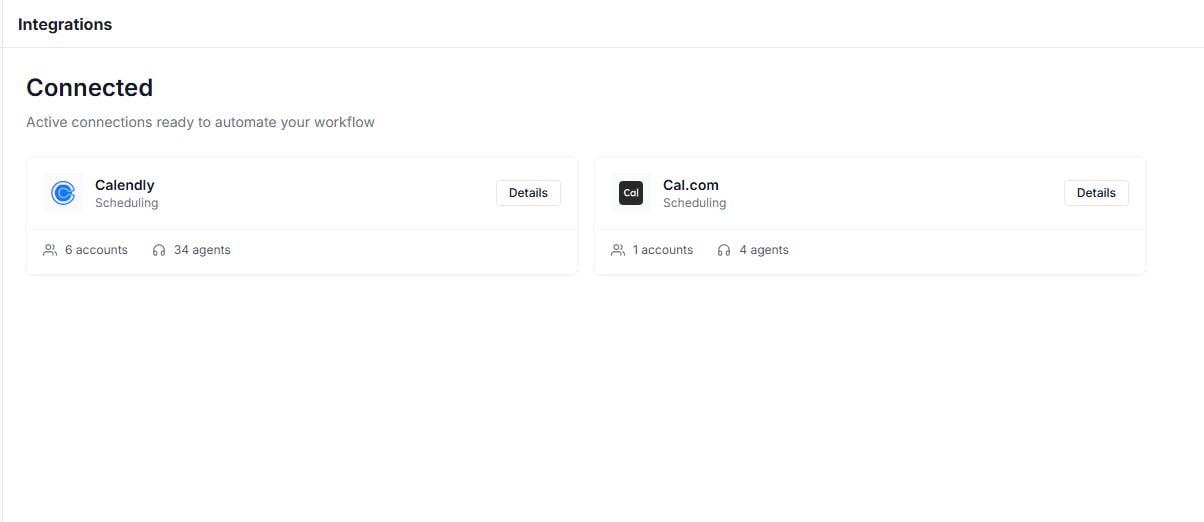
Integrations screen with Calendly and Cal.com connected
Key building blocks (how scheduling works)
Variables (capture the caller’s date/time)
Variables extract immediately after the caller’s latest reply and before outcome evaluation, so your routing can validate the date/time right away. If you loop back to the same node, variables re-extract and overwrite prior values (perfect for “try again” date collection). See Loops.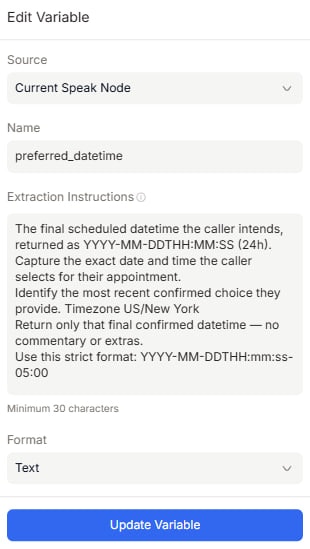
Variables panel with a "preferred_datetime" variable configured
Actions (run scheduling mid-call)
In our agent, Actions run mid-call from a Speak node. When Actions exist, the node can auto-proceed without waiting for another caller reply, and rule-based outcomes are recommended because outcomes fire based on internal values/results.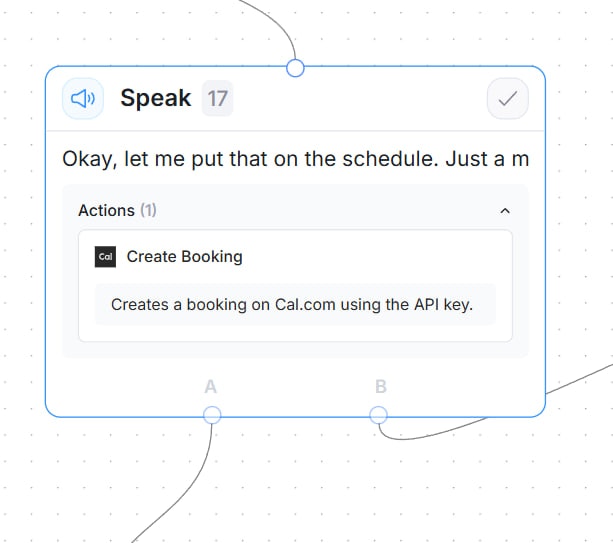
Speak node Actions panel with a scheduling action selected
Scheduling timezone handling (important)
Scheduling related Actions accept an optionaltimezone. If not set, Thoughtly falls back to:
- timezone input (action config) -> 2) agent timezone (advanced settings) -> 3)
America/New_York.
Pattern A (recommended default): Caller picks a date/time, then book it
Flow overview
- Ask for preferred date (Speak -> Prompt)
- Check availability mid-call (Speak node -> Get Available Times Action)
- Present returned slots and collect a choice (Speak -> Variable + loop to Step 2 if needed)
- Book the selected slot (Speak node with Scheduling Action)
- Confirm (Message / Prompt)
- Fallback (offer alternatives or Transfer)
Step-by-step (Agent Builder)
Step 1 - “Collect preferred date” Speak node
Create a Speak node that asks something like:- “What day works best for you?”
- “If you have a timezone preference, tell me as well.”
preferred_date(Text)preferred_timezone(Text, optional)
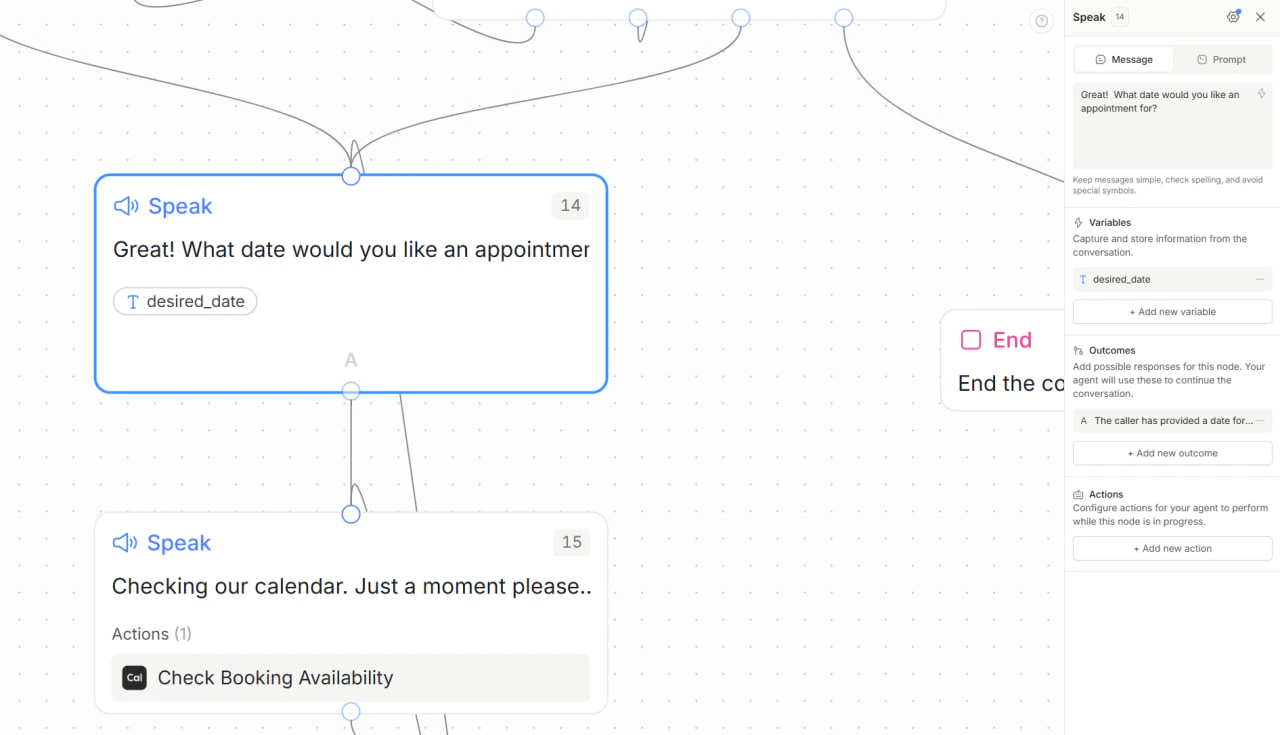
Speak node to collect date
Step 2 - Check availability node (mid-call Action)
Create a new Speak node to run availability lookup:- Message: “Let me check what times are open.”
- Add a scheduler Get Available Times action (Calendly or Cal.com)
- Map input values from Step 1:
- Requested date:
preferred_date - Timezone:
preferred_timezone(optional)
- Requested date:
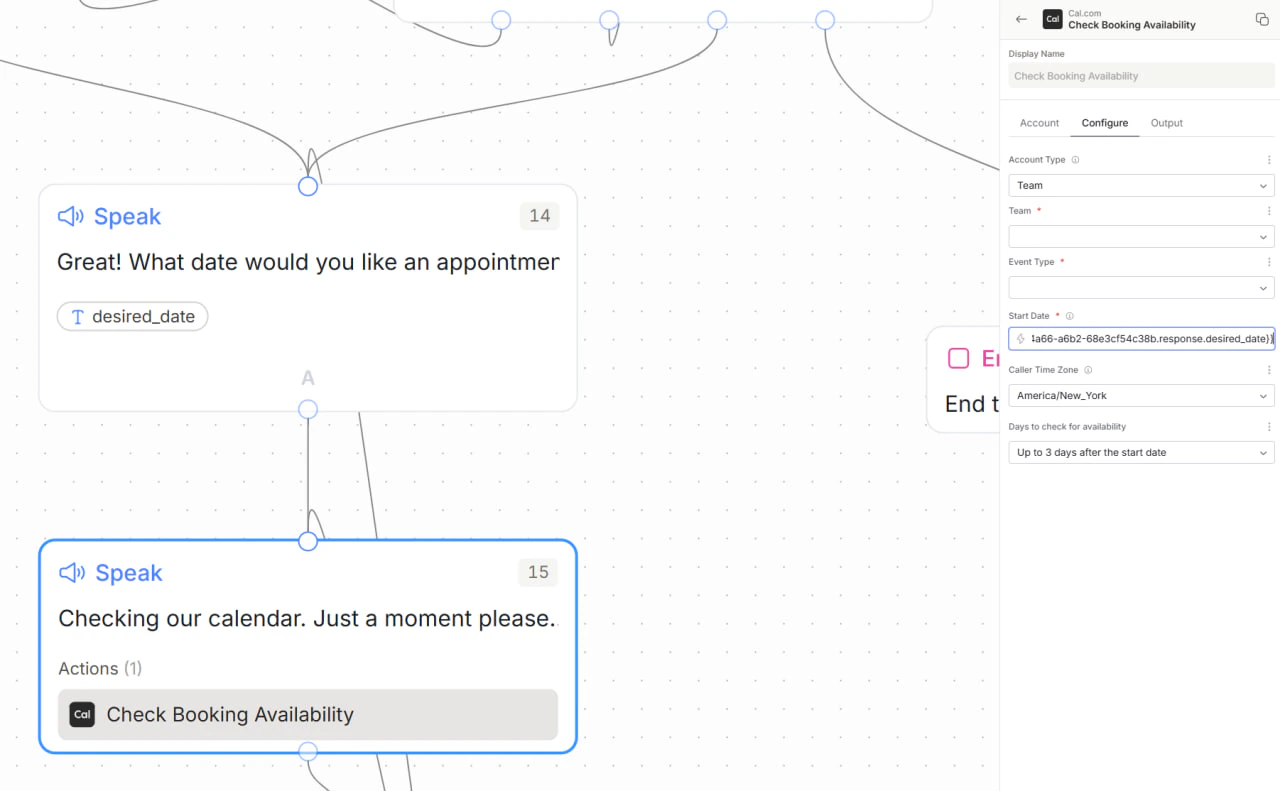
Speak node to check timeslots via Action
Step 3 - Collect preferred slot from returned availability
Create another Speak node that presents the returned slots and asks the caller to pick one:- “I have 10:00 AM, 2:30 PM, or 4:00 PM. Which works best?”
- Extract a variable such as
selected_timefrom the caller’s reply - Add outcomes on this node:
- If
selected_timeis valid -> continue to Step 4 (Booking) - If no slot is selected, caller wants another time, or caller provides a different date -> loop back to Step 2 (Check availability) and run lookup again
- If
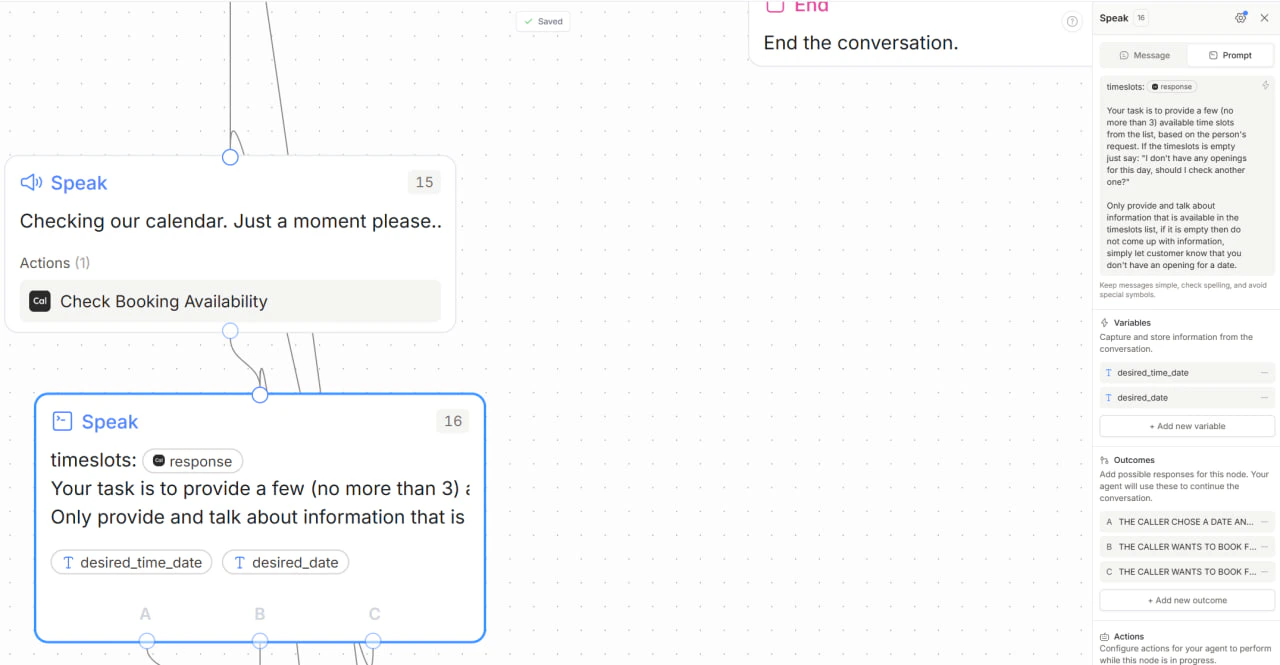
Speak node to provide available timeslots
Step 4 - Booking Speak node (Actions)
Create a new Speak node:- Message: “One moment while I book that for you.”
- Add an Action for your scheduler (Calendly or Cal.com) and map:
- Date/time input:
selected_time - Timezone:
preferred_timezone(or rely on the Calendly fallback order)
- Date/time input:
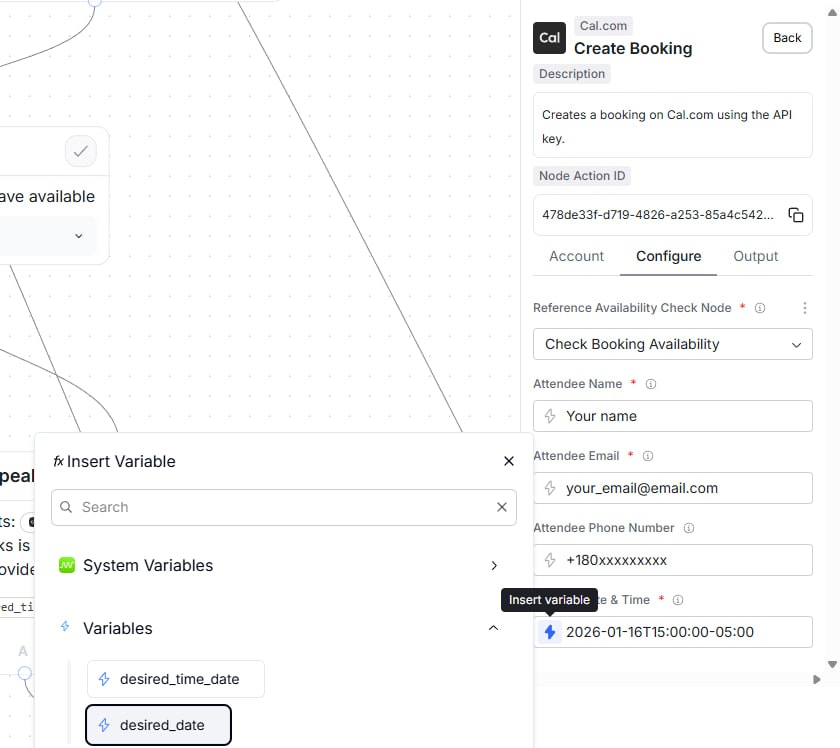
Calendly "Schedule appointment" action mapping fields
Step 5 - Confirm vs error (rule-based Outcomes after booking)
In the same booking node, add rule-based outcomes that check Action outputs such as:booking_status == "confirmed"-> confirmation node- Else -> error-handling node (try different time / get availability / transfer)
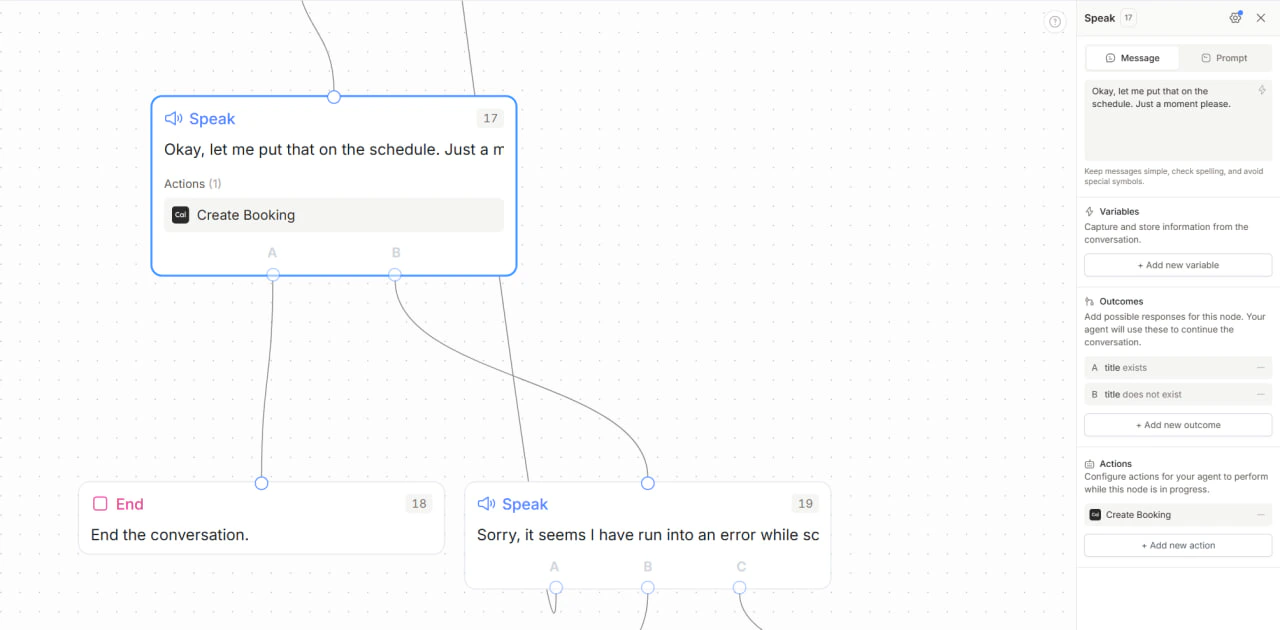
Speak node to book and do error handling
Step 6 - Confirmation Speak node
Use Message mode if you want an exact script:- “You’re all set for [date/time]. You’ll receive a confirmation shortly.”

Confirmation node with verbatim message enabled
Pattern B (pre-call availability): Prefetch times in Automations, book faster mid-call
This pattern reduces mid-call complexity by fetching available times before the live conversation starts, then using those times as metadata during the call. It is ideal when you want:- Faster conversations
- Fewer mid-call API round trips
- Simpler agent logic
- More deterministic scheduling flows
How it works
1) Pre-call Automation
Use a Get Available Times action inside an Automation, then store the returned times in metadata before you trigger the call.- Add a scheduling availability step (Calendly / Cal.com)
- Store output as metadata (for example:
available_times) - Start or route to your call only after this step succeeds
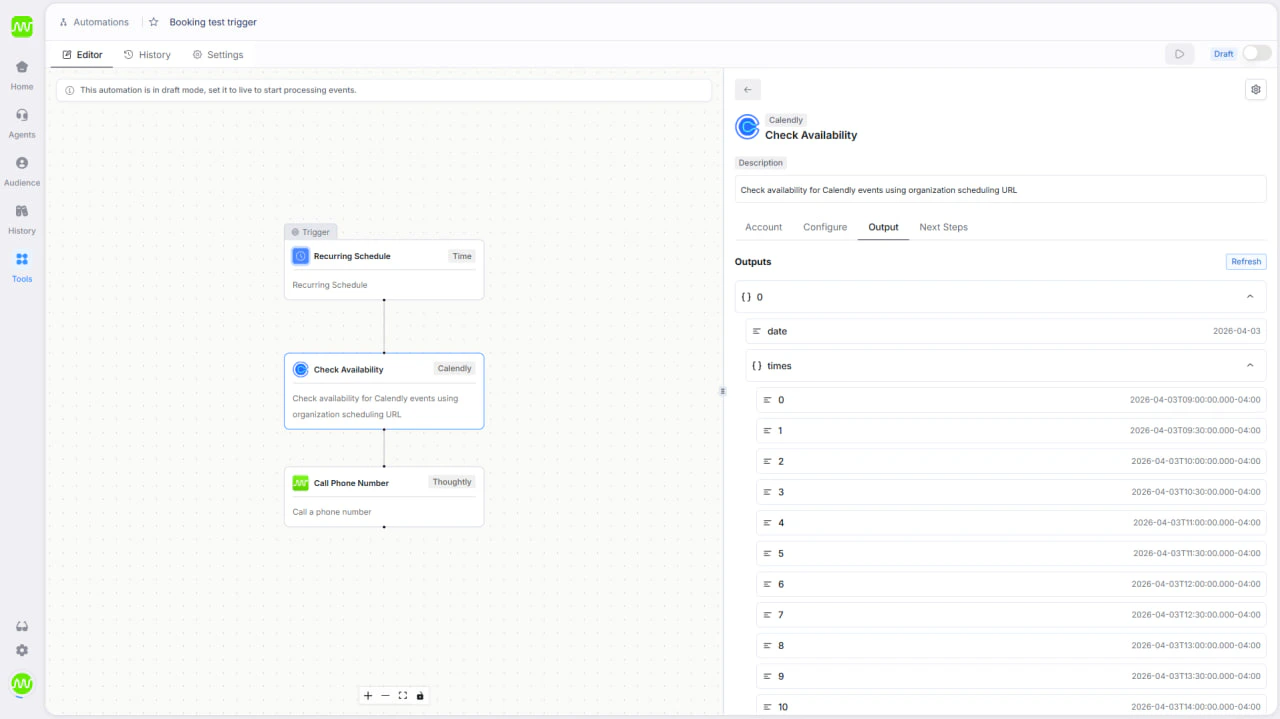
Pre-call automation flow that prefetches available times (Get Times Node)
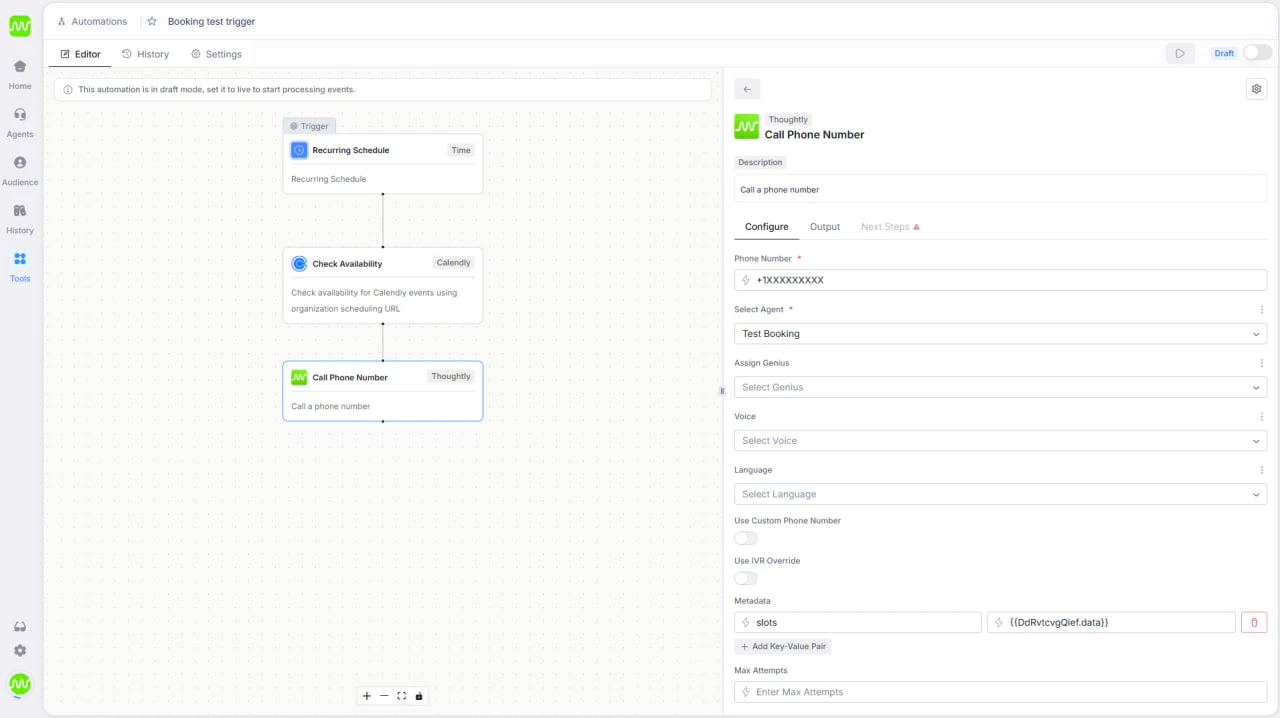
Pre-call automation flow that prefetches available times (Call Phone Number Node)
2) Agent conversation
During the live call, the agent reads options fromavailable_times, presents a short list, and captures the caller’s selected slot.
- Present only times that already exist in metadata
- Capture selection in a variable such as
selected_time - Confirm the chosen slot out loud before booking
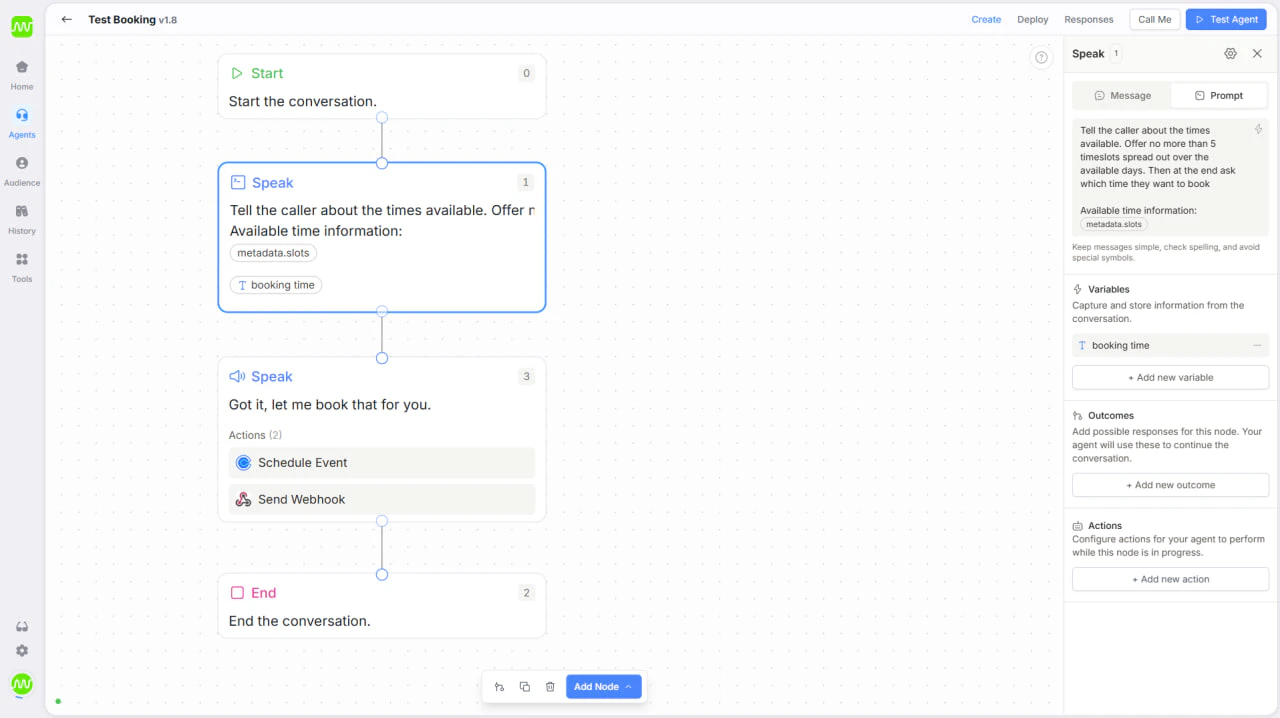
Agent conversation that presents prefetched slots and captures the selected time
3) Booking Action
In the scheduling Action, set Reference Node to None and map the selected time directly from metadata/variables instead of calling availability again mid-call.- Reference Node:
None - Booking time input:
selected_time(or equivalent mapped value) - Keep booking outcomes rule-based (
confirmedvs fallback path)
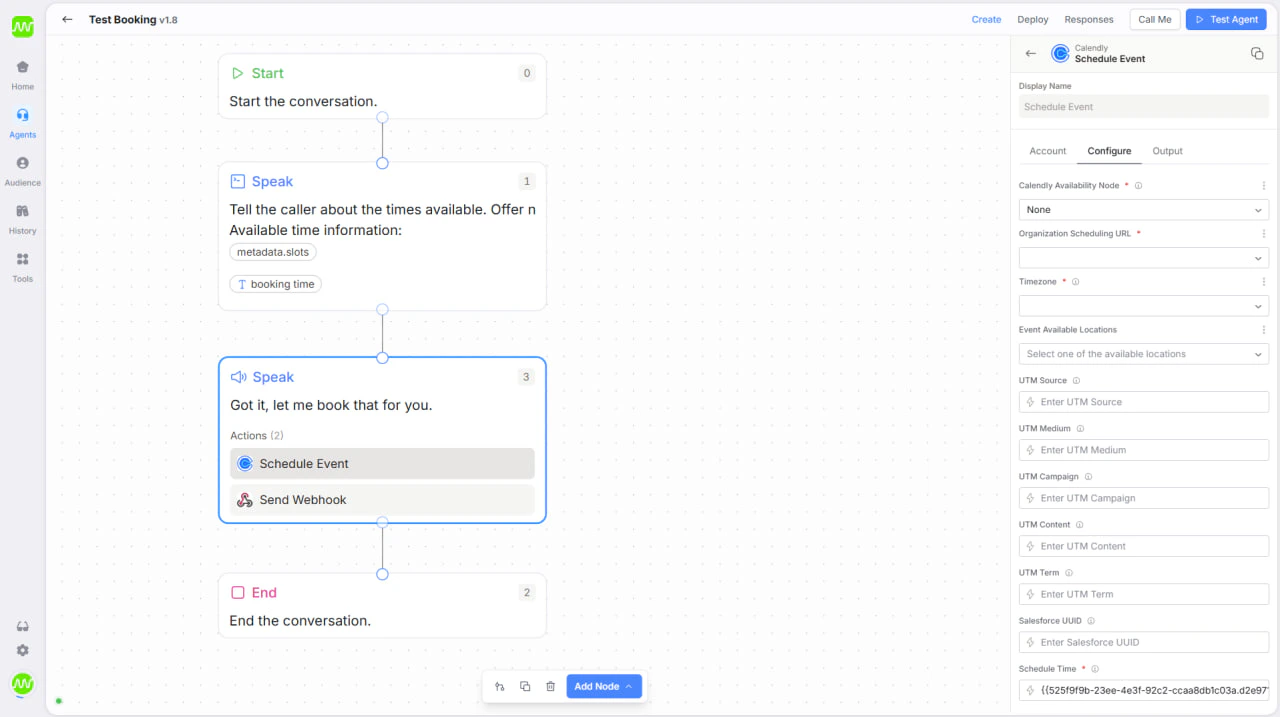
Booking action configured with Reference Node = None and direct slot mapping
Why this reduces friction
Because availability is already known:- The agent does not need to fetch availability mid-call
- There is no back-and-forth waiting on additional API checks
- The conversation feels faster and more natural
- The in-call routing logic is much simpler
Important limitation
This approach works best for near-term scheduling windows (typically within a week). If callers often request far-future dates, Pattern A (real-time availability lookup) is still recommended for accuracy.When to use Pattern B
Use pre-call availability when:- Speed and conversational simplicity are top priorities
- You want fewer live integrations running during calls
- Booking windows are short-term and predictable
- You prefer deterministic slot presentation over open-ended date parsing
- Pattern A: Flexible, real-time booking with full date parsing
- Pattern B: Faster, lower-friction booking using prefetched availability