

1) Step anatomy and data mapping
Most steps share these tabs (similar to triggers).Step configuration tabs
- Account / Configure - Connect the account (if required) and set step-specific options.
- Output - Preview the result schema this step produces (or expects). Click Refresh after a Draft run to update it.
- Next step - Choose the next node in the flow.
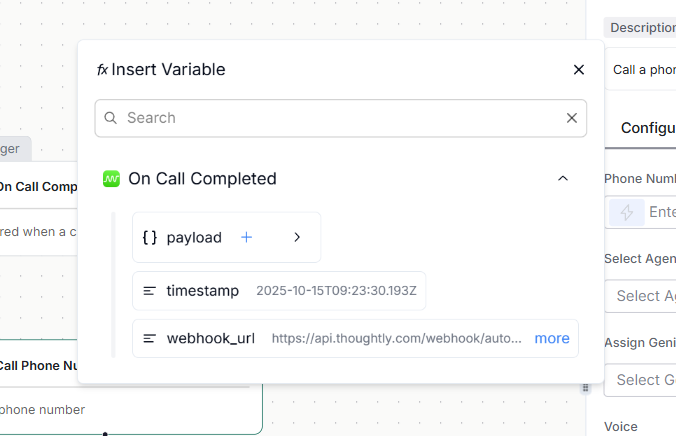
Field picker for mapping data
- Click the lightning icon to open the data tree.
- Pick the Trigger or any previous Step as the source, then click fields to insert them.
- Click the + next to a branch to insert an entire sub-object (for example, the full contact).
- Map phone:
{{ trigger.payload.contact.phone }} - Map contact ID from an upsert step:
{{ steps.create_or_update_contact.contact_id }} - Map booking slot:
{{ steps.calendly_get_available_times.slots[0].start }}
- Draft: run safely with test payloads; Output -> Refresh updates schemas.
- Live: runs on real events. Only switch to Live after your test pass.
2) Thoughtly steps (core)
These power calls, contacts, and internal data flow. They are the backbone of most automations.A) Call Phone Number
Call any phone number with a selected Agent.- Inputs
- Agent - choose which agent places the call.
- Phone number - map from Trigger/Step (for example,
{{ trigger.payload.contact.phone }}). - Genius (optional) - attach a specific knowledge base for this call. You can now select a single Genius source, which prevents context hallucinations and helps manage RAG database sizes.
- Language / Voice (optional) - override the agent defaults per call.
- Metadata (optional) - JSON key-values injected into the agent for this call only (see Attributes vs Metadata).
Example:{"campaign":"q4","lead_source":"typeform","priority":2}
- Output -
call_id, status, timestamps, duration, provider metadata. - Warnings
- Refreshing Output places a real call to the mapped number. Test with internal numbers.
- Outbound calling restrictions: If you select an agent whose connected phone number has outbound calling disabled, a warning will appear. Enable “Allow Outbound Calls” in the phone number settings to resolve this.
- Typical uses - ad-hoc callbacks, small pilot campaigns.
B) Call Contact
Call a Thoughtly Contact by ID so you can track history and write Attributes.- Why this vs Call Phone Number? Lets you persist traits as Attributes and reuse them across future calls.
- Prerequisite - obtain a
contact_idvia Create or Update Contact or Get Contact by Phone Number. - Inputs -
contact_id, optional Genius (can select a single source to prevent context hallucinations and manage RAG database sizes), Language/Voice, Metadata. - Output - same call telemetry plus contact linkage.
- Warnings: If you select an agent whose connected phone number has outbound calling disabled, a warning will appear. Enable “Allow Outbound Calls” in the phone number settings to resolve this.
- Create or Update Contact - upsert a contact; returns
contact_id. - Get Contact by Phone Number - fetch to avoid duplicates or enrich calls.
- Add Attributes to Contact - set persistent key-values (plan, region, lifetime_value).
- Add Tags to Contact - apply lightweight labels (vip, pilot).
- Add Disposition - write a post-call label or result for analytics.
- Get All Contacts - list contacts for batch processing or export.
D) Messaging and inbound
- Send SMS - confirmations, links, follow-ups (map
to,body). - Connect Inbound Call - complete the inbound connection after On Inbound Call pre-checks.
E) Genius source tools
Maintain the knowledge base your agents use:- Add Source to Genius - add new content to a Genius source.
- Edit Genius Source - update a source’s content or metadata.
- Delete Genius Source - remove a source from the Genius knowledge base.
- Get Genius Source Content - fetch the full content for a source.
Recent action improvements
Dynamic values in number and date fields
Many numeric and date-like fields now support dynamic values from previous triggers or steps. When a field exposes the data picker or custom-value mode, you can insert variables such as:Automatic retry for webhook rate limits
When a webhook action receives a429 response, Thoughtly automatically respects the Retry-After header up to the supported retry window and retries once. If the retry succeeds, the automation continues. If it fails again, the run is marked failed.
For non-rate-limit errors such as 400 or 500, design the receiving system and workflow to handle failure explicitly.
Send Email
Use Send Email to send email from a connected email channel as part of an automation. Typical uses include confirmations, summaries, follow-ups, or internal notifications. Before using Send Email, configure your email domain and connected addresses in Email domains.Send SMS
Use Send SMS for confirmations, reminders, and short follow-up messages. If you want the contact to continue a two-way conversation with an agent, use an agent-led SMS conversation pattern rather than treating SMS as a one-off notification.Code
Use Code for advanced transformations and calculations. Code runs in a restricted sandbox and is best for last-mile customization such as normalizing phone numbers, scoring leads, or reshaping webhook payloads. See Code.3) AI and logic steps
A) AI
AI step options
- Extract Fields - structured extraction from text. Example configuration:
- Input:
{{ steps.call_contact.transcript }} - Schema:
{"email":"text","budget":"number","callback_ok":"boolean"}
- Input:
- Custom Prompt - generate a summary, label, or next action; feed into Conditions.
B) Conditions
Conditions step options
- Filter - drop records that do not qualify. Example:
budget < 100000-> drop. - If / Else - binary branch. Example:
emailmatches/.+@.+\..+/-> valid path; else ask to re-spell. - Switch - multi-way branch. Example: plan in
[basic, pro, enterprise]. - Random Outcome - split traffic for experiments (for example, 80% A and 20% B).
C) Loop
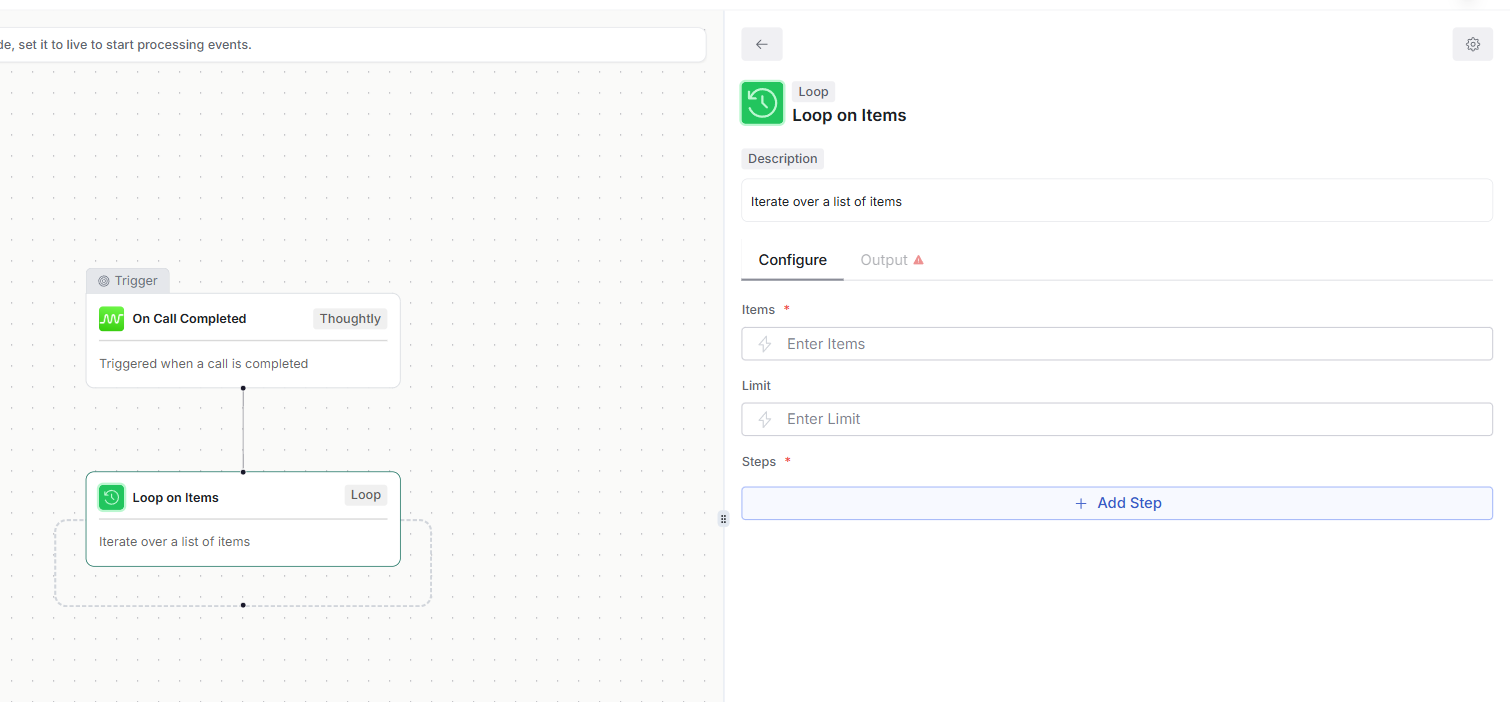
Loop step
- Loop on Items - iterate over each item in an array and run nested steps.
- Inputs: array path (for example,
{{ steps.salesforce_query.records }}), optional batch size, max items. - Loop variables:
{{ loop.index }}(zero-based),{{ loop.item }}(current object). - Example: loop contacts -> Call Contact each -> Add Disposition on result.
- Credit usage: Each iteration of a loop step consumes 1 credit (for AppSumo plans) or counts as 1 automation step, the same as regular automation nodes.
Conditional logic inside loop nodes
You can now add Conditions (Filter, If/Else, Switch) directly inside a loop node. This lets you branch or skip steps on a per-item basis without needing a separate outer condition step. How it works- Inside a Loop on Items node, add a Conditions step as you would anywhere else in the automation.
- Reference
{{ loop.item }}fields in your condition expressions to evaluate each item individually. - Each branch inside the loop runs only for items that match its condition; items that do not match follow the else/default branch or are skipped.
- Use Filter inside the loop to drop items early and avoid unnecessary downstream steps.
- Use Switch when items fall into more than two categories (for example, routing by
loop.item.region). - Nested conditions count toward the automation step total the same as any other condition node.
4) Time utilities
- Delay For - pause the workflow for a fixed duration (for example,
PT30S). - Delay Until - pause the workflow until a specific timestamp.
- Get Current Time - return the current time in the selected timezone.
- Get Current Date - return today’s date.
- Get Current Date and Time - return the current timestamp.
- Convert Timezone - convert a timestamp between timezones.
- Convert Date and Time Format - reformat date/time strings (ISO to custom formats).
5) Webhook and utility
Webhook
- Send Webhook - POST data to external systems.
- Headers: include auth (for example,
X-API-Token). - Idempotency: send an
event_id; make downstream receivers idempotent. - Retries: design your receiver for retries/backoff.
- Headers: include auth (for example,
Utility
- Get Website Content - fetch and parse HTML or JSON for enrichment.
6) Scheduling and booking integrations
Pick the tool your team uses; patterns are similar (availability -> choose slot -> schedule -> confirm).Acuity
- Create Appointment - create a new appointment.
- Update Appointment - update an existing appointment.
- Cancel Appointment - cancel an appointment.
- Reschedule Appointment - move an appointment to a new time.
- Get Available Times - return available time slots.
- Get Available Dates - return dates with availability.
- Get Availability in Date Range - return availability within a date range.
- Get Availability in Date Range for Calendars - return availability by calendar in a date range.
- Search Appointments - find appointments by filters.
- Get Appointment Types - list appointment types.
- Get Calendars - list calendars.
- Get Forms - list intake forms.
- Get Form by Appointment Type ID - fetch the form for a specific appointment type.
Acuity Enterprise
- Create Appointment - create a new appointment.
- Update Appointment - update an existing appointment.
- Cancel Appointment - cancel an appointment.
- Reschedule Appointment - move an appointment to a new time.
- Get Available Times - return available time slots.
- Get Available Dates - return dates with availability.
- Get Availability in Date Range - return availability within a date range.
- Get Availability in Date Range for Calendars - return availability by calendar in a date range.
- Search Appointments - find appointments by filters.
- Get Appointment Types - list appointment types.
- Get Calendars - list calendars.
- Get Forms - list intake forms.
- Get Form by Appointment Type ID - fetch the form for a specific appointment type.
Cal.com
- Check Booking Availability - check availability for a specific slot or event.
- Create Booking - create a booking for a selected slot.
Calendly
- Get Available Times - fetch bookable times for an event type.
- Schedule Appointment - schedule a Calendly appointment.
- Get Event Type Availability - check availability for an event type.
- Get Event Type Availability By Organization - check availability across an organization.
- Schedule Event - schedule an event for a user.
- Schedule Event By Organization - schedule an event within an organization.
- Check Availability - check host availability for a time range.
- Schedule Event With Reference - schedule an event with an external reference ID.
GoHighLevel (scheduling)
- Get Available Times - retrieve available appointment slots.
- Schedule Appointment - book an appointment.
Mindbody
- Get Bookable Times - fetch available bookable times.
- Get Bookable Time for All Session Types - fetch availability across session types.
- Add Appointment - create an appointment.
- Get Locations - list locations.
- Add Client - create a client profile.
- Get Client by Email - find a client by email.
- Get Client by Phone - find a client by phone number.
Zoho Bookings
- Create Appointment - create a new appointment.
- Fetch Appointments - list appointments by filter or date range.
- Reschedule Appointment - move an appointment to a new time.
- Delete Appointment - cancel an appointment.
- Fetch Availability - retrieve available time slots.
last_booking_at.
7) CRM and marketing integrations
Manage contacts, leads, and deals across systems. Typical pattern: search -> create/update -> note -> follow-up.GoHighLevel
- Create Contact - create a contact record.
- Search for Contact - search contacts by fields.
- Create Note - add a note to a contact.
- Retrieve Contact - get a contact by ID.
- Update Contact - update contact fields.
- Delete Contact - delete a contact.
HubSpot
- Create Contact - create a new contact.
- Retrieve Contact - fetch a contact by ID.
- Update Contact - update contact properties.
- Delete Contact - delete a contact.
- Search Contact - search contacts by criteria.
- Get Deal - retrieve a deal by ID.
- Update Deal - update deal properties.
Keap
- Create Contact - create a new contact.
- List Contacts - list contacts with optional filters.
- Retrieve Contact - get a contact by ID.
- Update Contact - update contact details.
- Delete Contact - delete a contact.
Pipedrive
- Create Lead - create a new lead.
- Update Lead - update lead details.
- Get Lead - retrieve a lead by ID.
- Delete Lead - delete a lead.
- Get Leads - list leads.
Salesforce
- Execute SOQL Query - run a SOQL query and return records.
- Create Object - create a new object record.
- Update Object - update an existing object record.
- Delete Object - delete an object record.
- Add Topic to Object - add a topic/tag to an object.
- Get Access Token - generate an access token for API calls.
Salesforce Sandbox
- Execute SOQL Query - run a SOQL query and return records.
- Create Object - create a new object record.
- Update Object - update an existing object record.
- Delete Object - delete an object record.
- Add Topic to Object - add a topic/tag to an object.
- Get Access Token - generate a sandbox access token for API calls.
Zoho CRM
- Search Record - search records by criteria.
- Create Record - create a new record.
- Update Record - update a record.
- Delete Record - delete a record.
{"campaign":"q4"} -> Add Disposition -> update the CRM.
8) Collaboration, sheets, and ops
Slack
- Send Message - post a message to a channel.
- Send Direct Message - send a direct message to a user.
- Delete Message - delete a message.
SmartSheet
- Get Sheets - list available sheets.
- Get Row - retrieve a row by ID.
- Get Sheet - fetch sheet details.
- Search Sheet - search rows by query.
- Add Row - add a row to a sheet.
- Update Row - update a row.
- Search Column - find columns by name or ID.
Trello
- Create Card - create a card in a list.
- Update Card - update card fields.
Zendesk
- Create Ticket - create a support ticket.
9) Error handling and resilience
- Happy path: check explicit success flags (for example,
action_status == "ok"). - Retryable: if transient error and retries < 2 -> Delay For
PT30S-> retry the step. - Fallback: after max retries -> Send SMS apology or leverage a Transfer node in the voice flow; create a ticket.
- Timeouts: if an action exceeds the SLA, branch to a graceful path and continue.
- Idempotency: ensure webhook and CRM writes are safe on retry.
10) Best practices
- Prefer Call Contact when you need persistent history and Attributes; use Call Phone Number for ad-hoc calls.
- Use Metadata for per-call context (temporary); use Attributes for persistent facts. See Attributes vs Metadata.
- Keep expressions simple; move heavy logic into upstream queries or dedicated Conditions.
- Add explicit Else/Default branches to avoid dead ends.
- Test in Draft with safe numbers. Remember: Refreshing Output on call steps places real calls.
See also
- Automations - Triggers - where automations start.
- Attributes vs Metadata - what to store and when.
- Automations overview - preparing data and contacts before and after calls.
- On Inbound Call trigger - logic before connecting inbound calls.
Attributes vs Metadata
Learn what data persists on contacts vs. per-call context ->