

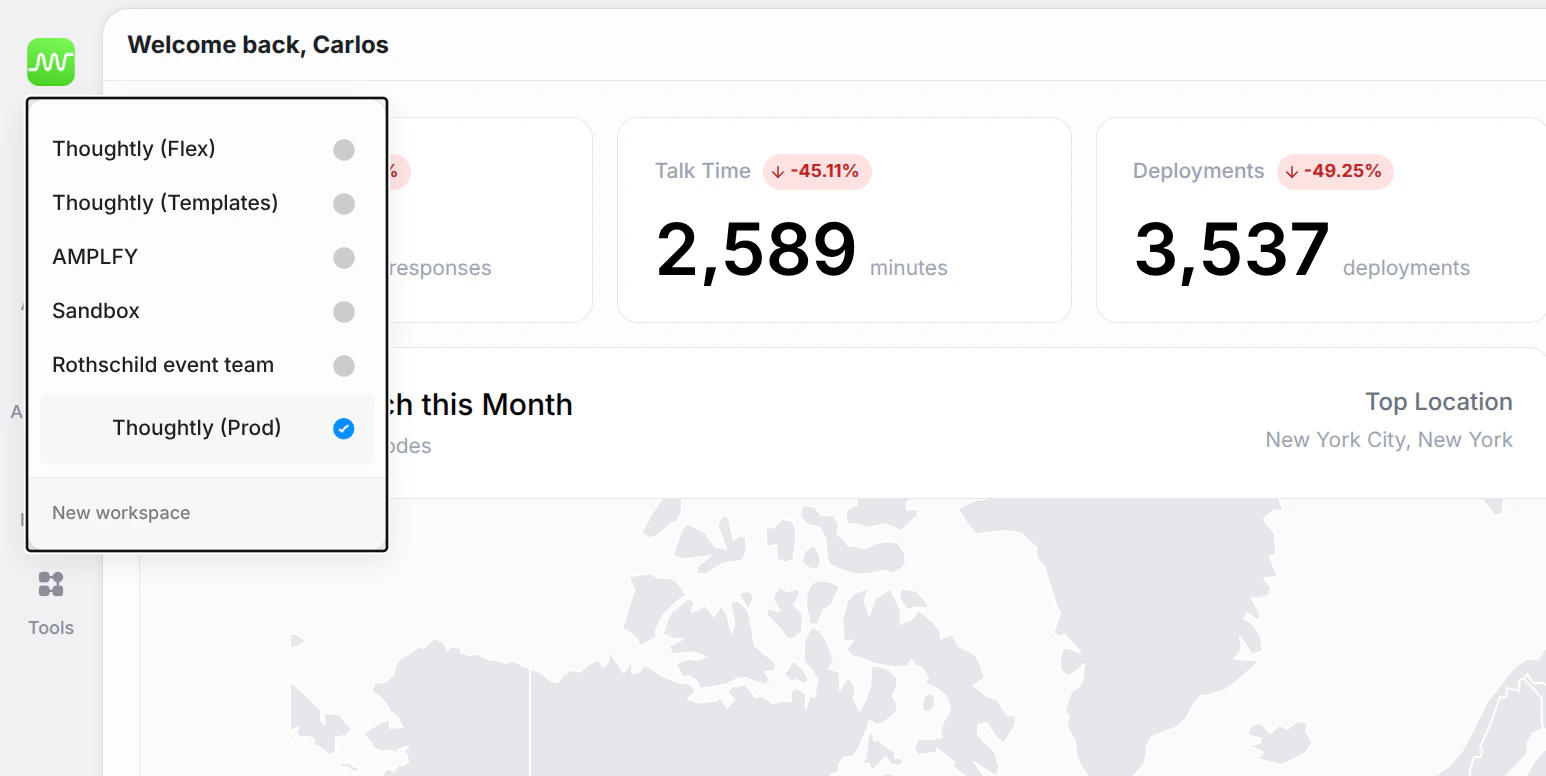
Workspace Switcher
What you’ll see
- Workspace list — all workspaces you belong to, each with its icon. The current workspace is indicated with a checkmark.
- New Workspace — create a new workspace directly from the switcher.
Switching workspaces
Click any workspace in the list to switch to it. The platform reloads with that workspace’s agents, audiences, history, and settings.Creating a new workspace
Click New Workspace at the bottom of the switcher to create a fresh workspace. You can configure its name and icon later in Settings → General.See also
- Settings → General — configure workspace name and icon
- Workspaces — manage workspace members and permissions