> ## Documentation Index
> Fetch the complete documentation index at: https://docs.thoughtly.com/llms.txt
> Use this file to discover all available pages before exploring further.
# Workspace switcher
> Switch between Thoughtly workspaces, create new workspaces for separate projects or clients, and manage which workspace you're currently working in.
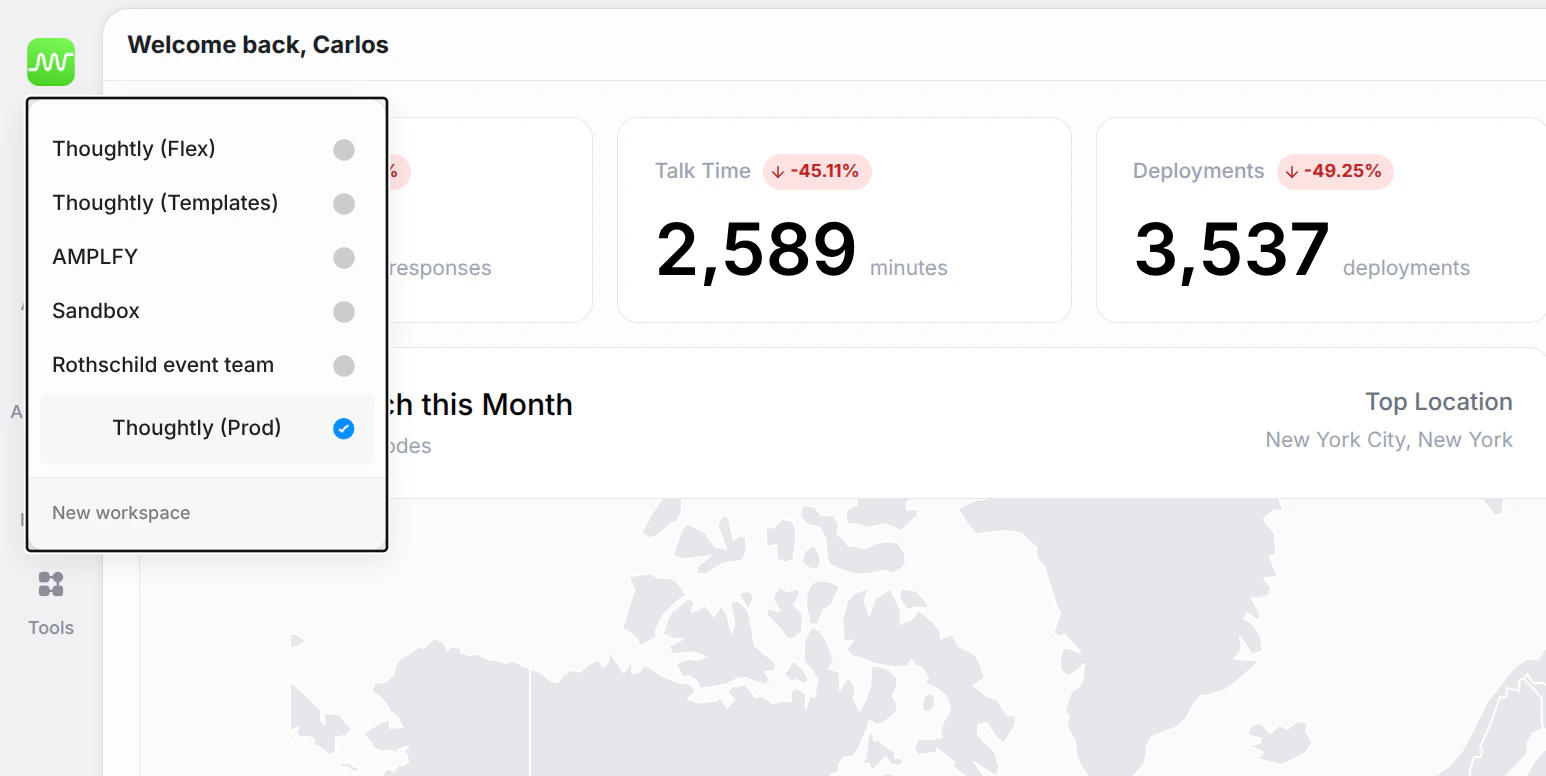
The Workspace Switcher lets you move between workspaces without signing out. Click the **workspace icon** in the top-left corner of the navigation to open it.
 ## What you'll see
* **Workspace list** — all workspaces you belong to, each with its icon. The current workspace is indicated with a checkmark.
* **New Workspace** — create a new workspace directly from the switcher.
## Switching workspaces
Click any workspace in the list to switch to it. The platform reloads with that workspace's agents, audiences, history, and settings.
## Creating a new workspace
Click **New Workspace** at the bottom of the switcher to create a fresh workspace. You can configure its name and icon later in [Settings → General](/platform/settings/general).
## See also
* [Settings → General](/platform/settings/general) — configure workspace name and icon
* [Workspaces](/platform/teams/overview) — manage workspace members and permissions
## What you'll see
* **Workspace list** — all workspaces you belong to, each with its icon. The current workspace is indicated with a checkmark.
* **New Workspace** — create a new workspace directly from the switcher.
## Switching workspaces
Click any workspace in the list to switch to it. The platform reloads with that workspace's agents, audiences, history, and settings.
## Creating a new workspace
Click **New Workspace** at the bottom of the switcher to create a fresh workspace. You can configure its name and icon later in [Settings → General](/platform/settings/general).
## See also
* [Settings → General](/platform/settings/general) — configure workspace name and icon
* [Workspaces](/platform/teams/overview) — manage workspace members and permissions