> ## Documentation Index
> Fetch the complete documentation index at: https://docs.thoughtly.com/llms.txt
> Use this file to discover all available pages before exploring further.
# Get started with phone numbers
> Buy, port, or bring your own phone numbers in Thoughtly and assign them to voice agents for inbound or outbound calling across US and international regions.
export const NextSection = ({title, icon, href, description}) =>
{description}
;
**Prerequisites**: Complete [Agent Builder Overview](/agents/overview) first.
Acquire, manage, and assign phone numbers to your voice agents for inbound calls, outbound calls, and SMS messaging.
## Overview
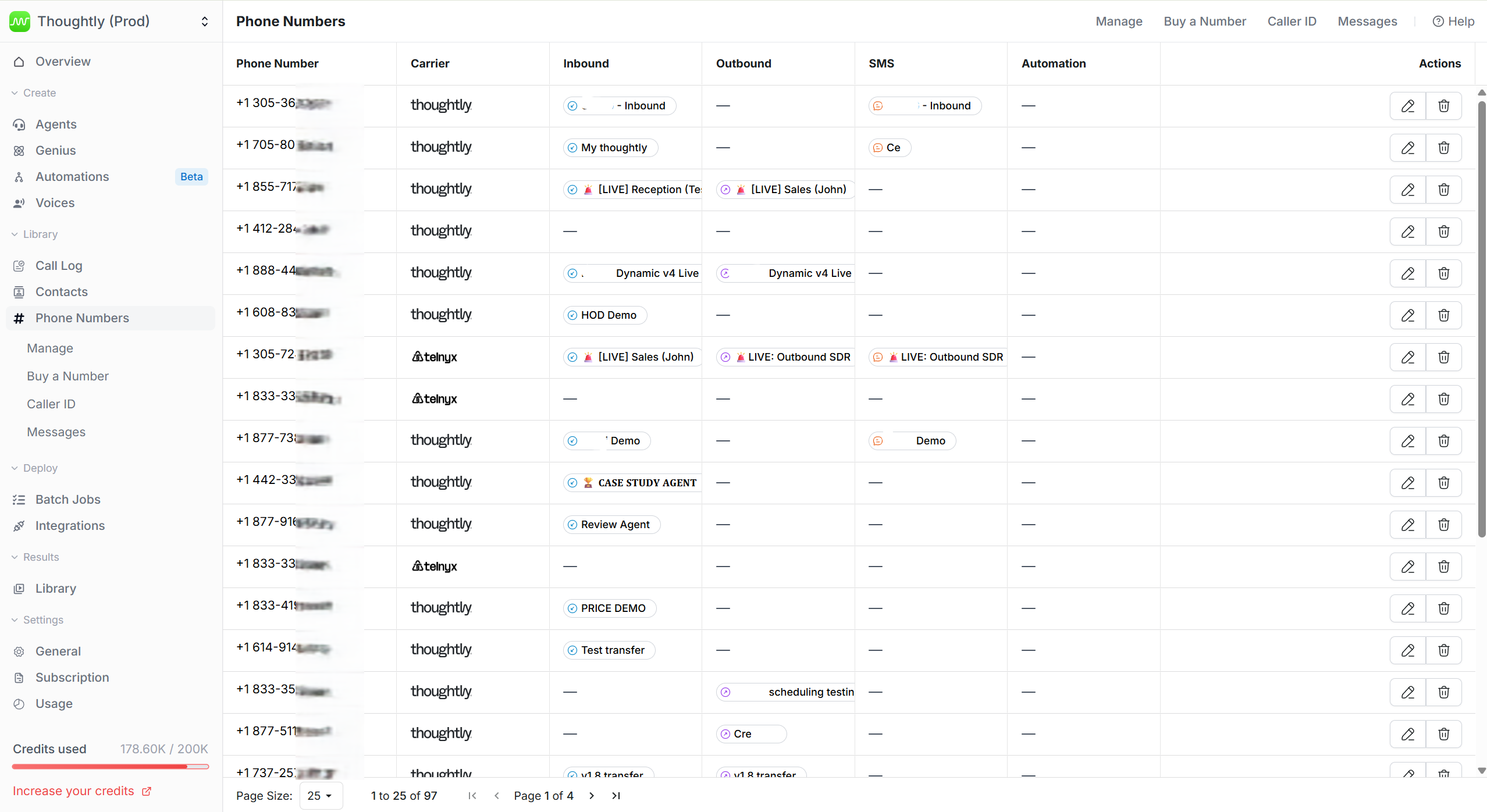
The phone number management system displays all your acquired numbers in a centralized table, showing key information like carrier details, capabilities, and current assignments. From here, you can purchase new numbers, import existing ones from supported carriers, or configure number assignments for your agents.
### Supported Capabilities
Each phone number displays its available features:
* **Voice**: Supports inbound and outbound voice calls
* **SMS**: Can send and receive SMS messages
* **MMS**: Can send and receive multimedia messages
### Number Types
Available phone numbers include:
* **Local**: Area code-specific numbers for regional presence
* **National**: Country-wide numbers
* **Mobile**: Mobile-style numbers
* **Toll-free**: Free-to-call numbers for customer service
 ## Quick Start
1. **Navigate** to **Settings → Phone Numbers** in the platform navigation
2. **View** your current phone number inventory
* If you have no phone numbers, the system will automatically check for numbers from connected external providers
* Once the check completes, you'll see an empty state with an option to add your first number
3. **Add numbers** by purchasing from Thoughtly's pool (Unlimited plan) or importing from existing carriers
4. **Assign** numbers to agents for specific profiles (inbound, outbound, SMS)
5. **Configure** regional settings for optimal performance
## Key Concepts
### Agent Profiles
Each agent can be assigned up to three phone numbers:
* **Inbound profile**: For receiving incoming calls
* **Outbound profile**: For making outgoing calls
* **SMS profile**: For text messaging campaigns
### Regional Assignment
For Twilio numbers, you can select regions to minimize latency between servers and call destinations. Choose the region closest to where your agents will be making calls.
### Number Assignment Rules
* One phone number cannot serve as inbound for multiple agents
* Same restriction applies to outbound and SMS profiles
* Once assigned to an agent profile, numbers become unavailable for other usage
## Message History
The Messages tab provides a historical log of all SMS and MMS activity across your phone numbers. This view-only interface displays:
* **Date and time** of each message
* **To/From** phone numbers
* **Message content** sent or received by agents
This is purely for visibility and historical tracking—you cannot respond to messages directly from this interface.
## Troubleshooting
**Phone number not receiving calls**
* Verify number is assigned to an agent's inbound profile
* Check that agent is published (not in draft mode)
* Confirm number has Voice capability enabled
* Test by calling from a different phone
**Outbound calls not working**
* Verify number is assigned to agent's outbound profile
* Check that agent has outbound configuration set up
* Confirm number has Voice capability enabled
* **Verify "Allow Outbound Calls" is enabled** for the phone number in the edit modal
* Review [BYOC](/phone-number/byoc) for imported number setup
**SMS not sending or receiving**
* Verify number is assigned to agent's SMS profile
* Check that number has SMS/MMS capability
* Ensure [Send SMS action](/automations/actions#messaging-and-inbound) is configured in your automations
* Confirm carrier supports SMS for this number type
**Can't purchase number in desired area code**
* Try adjacent area codes in the same region
* Use the Refresh button to load new inventory
* For Unlimited plan users: Try different phone number type combinations in the search
* Consider [importing](/phone-number/byoc) from Twilio/Telnyx
* Contact [support](/support/getting-help) for bulk number needs
**Number shows "Pending" status after purchase**
* Wait a few minutes for automatic order processing (Unlimited plan purchases)
* Click the **Process** button to manually sync order status
* Verify your team has valid Telnyx connection credentials
* Contact [support](/support/getting-help) if status doesn't update after 10 minutes
**Common Mistake**: Assigning the same number to multiple agent inbound profiles. Each number can only route to ONE agent for inbound calls. Use [Transfer nodes](/agents/nodes#transfer-node) if you need routing logic.
## See also
* [Bring Your Own Carrier (BYOC)](/phone-number/byoc) - acquiring phone numbers
* [Configuration](/phone-number/configuration) - assigning numbers to agents
* [Billing & Credits](/phone-number/billing-credits) - understanding costs
* [Send SMS Action](/automations/actions#messaging-and-inbound) - text messaging in automations
* [Glossary: Carrier](/resources/glossary#carrier) - understanding telephony providers
## Quick Start
1. **Navigate** to **Settings → Phone Numbers** in the platform navigation
2. **View** your current phone number inventory
* If you have no phone numbers, the system will automatically check for numbers from connected external providers
* Once the check completes, you'll see an empty state with an option to add your first number
3. **Add numbers** by purchasing from Thoughtly's pool (Unlimited plan) or importing from existing carriers
4. **Assign** numbers to agents for specific profiles (inbound, outbound, SMS)
5. **Configure** regional settings for optimal performance
## Key Concepts
### Agent Profiles
Each agent can be assigned up to three phone numbers:
* **Inbound profile**: For receiving incoming calls
* **Outbound profile**: For making outgoing calls
* **SMS profile**: For text messaging campaigns
### Regional Assignment
For Twilio numbers, you can select regions to minimize latency between servers and call destinations. Choose the region closest to where your agents will be making calls.
### Number Assignment Rules
* One phone number cannot serve as inbound for multiple agents
* Same restriction applies to outbound and SMS profiles
* Once assigned to an agent profile, numbers become unavailable for other usage
## Message History
The Messages tab provides a historical log of all SMS and MMS activity across your phone numbers. This view-only interface displays:
* **Date and time** of each message
* **To/From** phone numbers
* **Message content** sent or received by agents
This is purely for visibility and historical tracking—you cannot respond to messages directly from this interface.
## Troubleshooting
**Phone number not receiving calls**
* Verify number is assigned to an agent's inbound profile
* Check that agent is published (not in draft mode)
* Confirm number has Voice capability enabled
* Test by calling from a different phone
**Outbound calls not working**
* Verify number is assigned to agent's outbound profile
* Check that agent has outbound configuration set up
* Confirm number has Voice capability enabled
* **Verify "Allow Outbound Calls" is enabled** for the phone number in the edit modal
* Review [BYOC](/phone-number/byoc) for imported number setup
**SMS not sending or receiving**
* Verify number is assigned to agent's SMS profile
* Check that number has SMS/MMS capability
* Ensure [Send SMS action](/automations/actions#messaging-and-inbound) is configured in your automations
* Confirm carrier supports SMS for this number type
**Can't purchase number in desired area code**
* Try adjacent area codes in the same region
* Use the Refresh button to load new inventory
* For Unlimited plan users: Try different phone number type combinations in the search
* Consider [importing](/phone-number/byoc) from Twilio/Telnyx
* Contact [support](/support/getting-help) for bulk number needs
**Number shows "Pending" status after purchase**
* Wait a few minutes for automatic order processing (Unlimited plan purchases)
* Click the **Process** button to manually sync order status
* Verify your team has valid Telnyx connection credentials
* Contact [support](/support/getting-help) if status doesn't update after 10 minutes
**Common Mistake**: Assigning the same number to multiple agent inbound profiles. Each number can only route to ONE agent for inbound calls. Use [Transfer nodes](/agents/nodes#transfer-node) if you need routing logic.
## See also
* [Bring Your Own Carrier (BYOC)](/phone-number/byoc) - acquiring phone numbers
* [Configuration](/phone-number/configuration) - assigning numbers to agents
* [Billing & Credits](/phone-number/billing-credits) - understanding costs
* [Send SMS Action](/automations/actions#messaging-and-inbound) - text messaging in automations
* [Glossary: Carrier](/resources/glossary#carrier) - understanding telephony providers