> ## Documentation Index
> Fetch the complete documentation index at: https://docs.thoughtly.com/llms.txt
> Use this file to discover all available pages before exploring further.
# Bring Your Own Carrier (BYOC)
> Import phone numbers from your Twilio, Telnyx, or other SIP carrier into Thoughtly to keep existing providers, rates, and compliance while running voice agents.
export const NextSection = ({title, icon, href, description}) =>
{description}
;
**Prerequisites**: Active Thoughtly workspace with credits. For importing: Twilio or Telnyx account with numbers. Review [Phone Number Management](/phone-number/getting-started) first.
Acquire phone numbers for your Thoughtly agents through **Bring Your Own Carrier (BYOC)**. Purchase numbers directly through Thoughtly or import existing numbers from your [Twilio](/resources/glossary#twilio) or [Telnyx](/resources/glossary#telnyx) carrier accounts.
## Purchasing Numbers
**Unlimited Plan Feature**: For teams on the Unlimited plan with the `flex_phone_self-serve` feature flag enabled, you can purchase numbers directly from Thoughtly's Telnyx number pool without adding carrier credentials.
### Purchase from Thoughtly Number Pool (Unlimited Plan)
For teams on the Unlimited plan, purchasing numbers is streamlined through a modal interface:
#### Step 1: Access Purchase Modal
1. Navigate to **Settings → Phone Numbers** in the platform navigation
2. Click **Add a Number** in the top right corner
3. Select **Purchase from our number pool** from the dialog
#### Step 2: Configure Search Criteria
1. **Select Country**: Choose your target country from the dropdown
2. **Enter Area Code** (optional): Specify a prefix like "312" for Chicago
3. **Select Phone Number Types**: Choose one or more types:
* **Local**: Area code-specific numbers for regional presence
* **Mobile**: Mobile-style numbers
* **Toll-free**: Free-to-call numbers for customer service
#### Step 3: Search and Review Results
1. Click **Search** to view available numbers
2. Review the search results table showing:
* **Phone Number**: The number with its type icon (phone, mobile, or grid)
* **Features**: Available capabilities (call, SMS, voicemail)
* **Cost**: Monthly cost per number
3. Use the **Refresh** button to load new inventory if needed
#### Step 4: Select and Purchase
1. **Select numbers** by checking the boxes next to your preferred options
2. **Configure webhook settings**: Toggle "Allow Webhook & Messaging Updates" if you want immediate inbound call and messaging capabilities
3. Click **Buy now** to complete the purchase
**Expected Result**: Purchased numbers appear in your phone numbers table with a "Pending" status. The system processes orders asynchronously. You can manually sync order status using the **Process** button in the table, or wait for automatic processing.
Numbers purchased from the pool are processed asynchronously. They will show as "Pending" until the order completes successfully. Check back or use the Process button to manually sync the status.
### Purchase via Marketplace (Standard Flow)
For teams not on the Unlimited plan or without the feature flag:
#### Step 1: Access Number Marketplace
1. Navigate to **Settings → Phone Numbers** in the platform navigation
2. Click **Add a Number** in the top right corner
3. Select **Import your Telnyx or Twilio number**
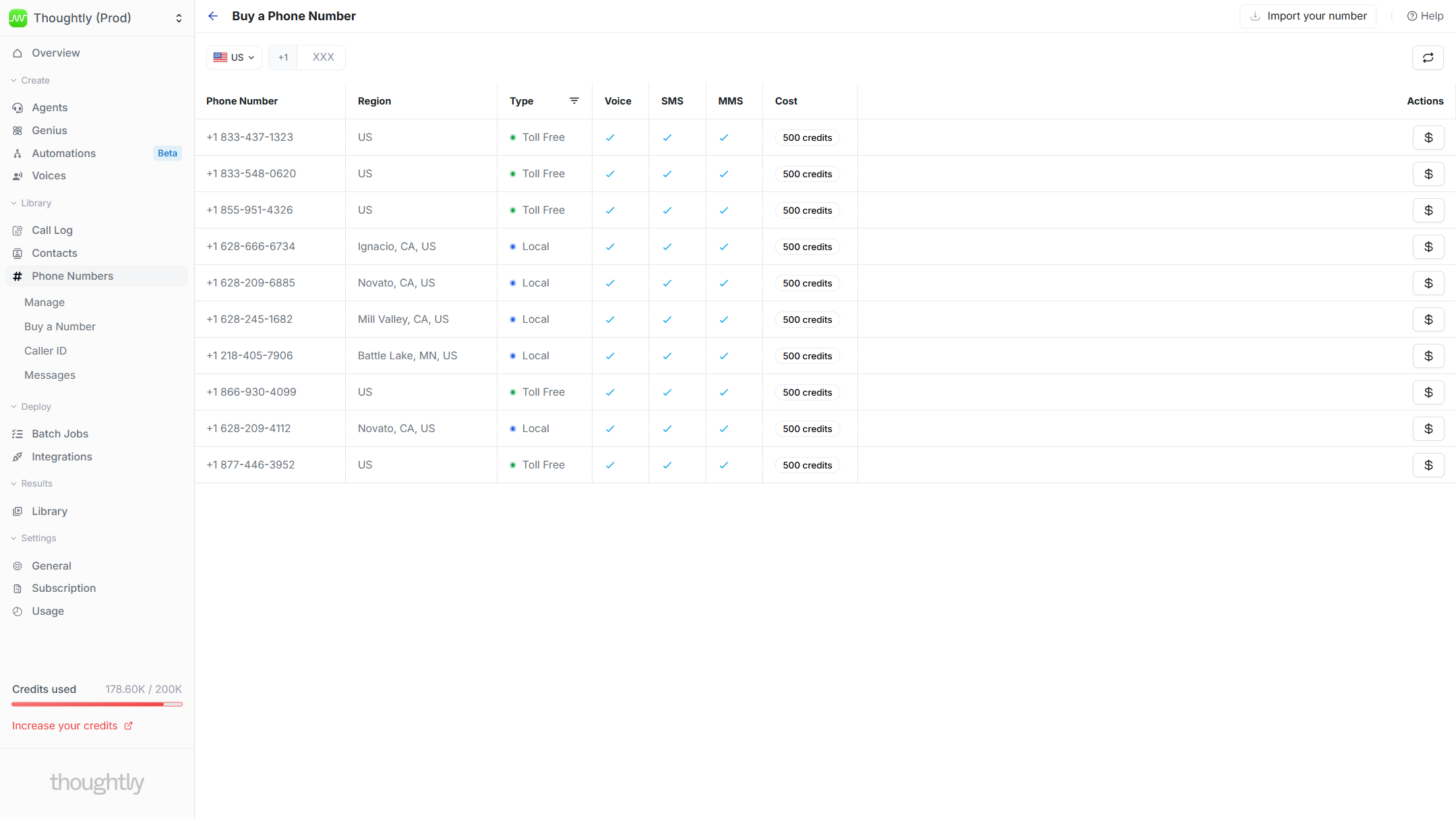
4. You'll see the number marketplace table with available inventory
#### Step 2: Select Region
1. Click the **Country** button in the top left corner
2. Choose your target country (e.g., United States)
3. Select the desired **Area Code** (e.g., 228 for Mississippi)
The system loads available numbers for your selected region. If you don't see suitable options, click the **Refresh** button to load additional inventory from the database.
 #### Step 3: Evaluate Number Features
Before purchasing, review each number's capabilities in the table:
| Column | Description |
| ---------------- | -------------------------------------- |
| **Phone Number** | The actual number you'll acquire |
| **Region** | Closest region as specified by carrier |
| **Type** | National, Local, Mobile, or Toll-free |
| **Features** | Voice, SMS, and MMS capabilities |
| **Monthly Cost** | Recurring cost in credits |
#### Step 4: Complete Purchase
1. Click **Buy** in the Actions column for your chosen number
2. Review the confirmation modal carefully
3. **Important**: Credits are deducted immediately upon confirmation
4. No proration applies—you're billed for the full month even if cancelled within minutes
**Expected Result**: The purchased number appears in your main phone numbers table and is ready for agent assignment.
## Importing Existing Numbers
### Supported Carriers
Thoughtly currently supports importing numbers from:
* **Twilio**
* **Telnyx**
### Prerequisites for Import
Before starting the import process:
1. **Purchase numbers** in your carrier dashboard (Twilio or Telnyx)
2. Ensure numbers are **active and configured** in your carrier account
3. Have your **API credentials** ready for authentication
### Step 1: Access Import Feature
1. Go to **Settings → Phone Numbers**, then click **Add a Number**
2. Select **Import your Telnyx or Twilio number** from the dialog
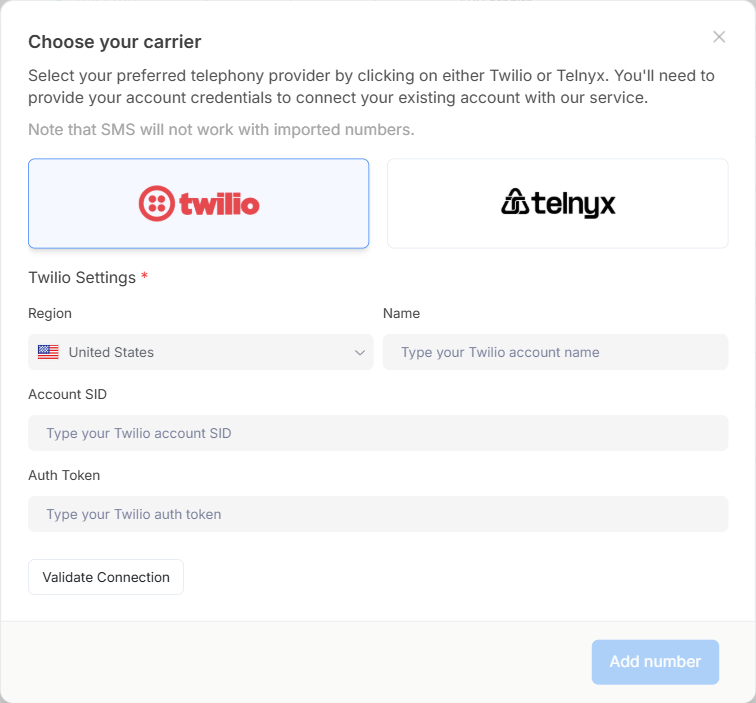
3. Select your carrier (Twilio or Telnyx) from the form
### Step 2: Configure Integration
1. **Name** your integration for easy identification
2. **Enter credentials** for your third-party carrier account
3. **Validate connection** to ensure successful authentication
4. **Select numbers** from the dropdown list of available numbers
#### Step 3: Evaluate Number Features
Before purchasing, review each number's capabilities in the table:
| Column | Description |
| ---------------- | -------------------------------------- |
| **Phone Number** | The actual number you'll acquire |
| **Region** | Closest region as specified by carrier |
| **Type** | National, Local, Mobile, or Toll-free |
| **Features** | Voice, SMS, and MMS capabilities |
| **Monthly Cost** | Recurring cost in credits |
#### Step 4: Complete Purchase
1. Click **Buy** in the Actions column for your chosen number
2. Review the confirmation modal carefully
3. **Important**: Credits are deducted immediately upon confirmation
4. No proration applies—you're billed for the full month even if cancelled within minutes
**Expected Result**: The purchased number appears in your main phone numbers table and is ready for agent assignment.
## Importing Existing Numbers
### Supported Carriers
Thoughtly currently supports importing numbers from:
* **Twilio**
* **Telnyx**
### Prerequisites for Import
Before starting the import process:
1. **Purchase numbers** in your carrier dashboard (Twilio or Telnyx)
2. Ensure numbers are **active and configured** in your carrier account
3. Have your **API credentials** ready for authentication
### Step 1: Access Import Feature
1. Go to **Settings → Phone Numbers**, then click **Add a Number**
2. Select **Import your Telnyx or Twilio number** from the dialog
3. Select your carrier (Twilio or Telnyx) from the form
### Step 2: Configure Integration
1. **Name** your integration for easy identification
2. **Enter credentials** for your third-party carrier account
3. **Validate connection** to ensure successful authentication
4. **Select numbers** from the dropdown list of available numbers
 #### Telnyx-Specific Configuration
For Telnyx numbers, you must also provide your **Connection ID**:
1. Log into your Telnyx dashboard
2. Navigate to **Voice** → **TeXML Applications**
3. Create a new TeXML application or select an existing one
4. Copy the **Connection ID** from the application details
5. Enter this Connection ID when configuring your Telnyx integration in Thoughtly
The Connection ID is required for Telnyx TeXML to properly route calls and handle recordings. Without it, your imported Telnyx numbers will not function correctly.
### Step 3: Configure Webhook Settings
**Critical Decision**: Choose your webhook configuration carefully:
**Outbound Only Toggle (Default)**
* Prevents changes to existing webhook and messaging settings
* Preserves current carrier configurations
* Use this if the number serves other purposes outside Thoughtly
**Allow Webhook and Messaging Updates (Advanced)**
* Thoughtly takes full control of the number
* Existing carrier settings are reconfigured for Thoughtly use only
* Any previous inbound/SMS integrations will be disabled
#### Telnyx Webhook Configuration
When importing Telnyx numbers with webhook updates enabled, ensure your TeXML application webhook URL is set to:
```
https://api.thoughtly.com/webhook/telnyx/texml
```
This endpoint properly handles:
* Inbound call routing
* Call recordings
* Call status updates
### Step 4: Complete Import
1. Select multiple numbers if needed—all appear in the phone numbers field
2. Choose appropriate profile settings
3. Confirm the import
**Expected Result**: Imported numbers appear in your Thoughtly phone numbers table with "Imported" carrier designation.
## Disconnecting BYOC Carriers
You can disconnect your Twilio or Telnyx carrier integration at any time from the BYOC interface.
### How to Disconnect
1. Navigate to **Settings → Phone Numbers**
2. Click **Import Your Number** in the top right corner
3. Locate the connected carrier tile (Twilio or Telnyx)
4. Click the **X button** in the top-right corner of the carrier tile
5. Review the confirmation modal showing how many phone numbers will be affected
6. Click **Disconnect** to confirm
**Important**: Disconnecting a BYOC carrier will permanently delete all phone numbers that were imported through that connection. This action cannot be undone. Make sure you no longer need these numbers before proceeding.
### What Happens When You Disconnect
* All phone numbers imported through the carrier connection are removed from Thoughtly
* The carrier integration credentials are deleted
* Any agents using the disconnected numbers will no longer be able to receive or make calls with those numbers
* The numbers remain in your carrier account (Twilio/Telnyx) but are no longer connected to Thoughtly
### After Disconnecting
If you need to reconnect the same carrier:
1. Follow the standard [import process](#importing-existing-numbers) again
2. Re-enter your API credentials
3. Select which numbers to import
4. Reconfigure webhook settings as needed
## Regional Configuration
### Twilio Numbers Only
For both purchased and imported Twilio numbers, you can configure regions to optimize call quality:
1. **Edit** the phone number after acquisition
2. **Set Region** to the location closest to your calling destinations
3. This minimizes latency between Thoughtly servers and call recipients
**Best Practice**: Always select the region geographically closest to where your agents will be making the majority of their calls.
## Billing and Credits
### Purchase Pricing
* Numbers are billed in **credits** (specific amounts vary by number type and region)
* **No proration**: Full monthly charge applies regardless of cancellation timing
* Credits deduct from your monthly allowance immediately upon purchase
### Import Pricing
* **No additional Thoughtly charges** for imported numbers
* You continue paying your carrier (Twilio/Telnyx) directly
* Thoughtly only facilitates the connection and management
## Troubleshooting
**No numbers appear after region selection**
* Try different area codes within your target region
* Use the Refresh button to load new inventory
* Consider adjacent regions if specific area codes are unavailable
* Contact [support](/support/getting-help) if area code is consistently unavailable
**Purchase fails or credits not deducted**
* Verify sufficient credits in [Billing](/platform/billing) dashboard
* Check that number is still available (may have been purchased by another user)
* Try a different number from the same area code
* Clear browser cache and retry
**Numbers stuck in "Pending" status (Unlimited Plan)**
* Wait a few minutes for automatic order processing
* Click the **Process** button in the phone numbers table to manually sync order status
* Check that your team has valid Telnyx connection credentials configured
* Contact [support](/support/getting-help) if orders remain pending after 10 minutes
**Import connection fails**
* Verify API credentials in your carrier dashboard
* Ensure account has active API access enabled
* Check that numbers are purchased and active in carrier account
* Test API credentials in carrier's dashboard first
* For Telnyx: Verify Connection ID is correct and from a TeXML application
**Webhook configuration concerns**
* Use "Outbound Only" if preserving existing integrations
* Test thoroughly after import to confirm expected behavior
* Contact support with Team ID and affected numbers if issues arise
* Document existing webhook URLs before importing
* For Telnyx: Ensure webhook URL points to `/webhook/telnyx/texml` endpoint
**Imported number not working**
* Verify number is assigned to agent in [Configuration](/phone-number/configuration)
* Check that webhook settings updated correctly (if not using Outbound Only)
* Test with a simple call to confirm connectivity
* Review carrier dashboard for any error messages
* For Telnyx: Confirm Connection ID is properly configured in your TeXML application
**Carrier disconnection fails**
* Ensure you have a stable internet connection
* Try refreshing the page and attempting again
* If the issue persists, contact [support](/support/getting-help) with your Team ID
* Note: The carrier will remain connected until successfully disconnected
**Telnyx recordings not working**
* Verify your TeXML application webhook URL is set to `https://api.thoughtly.com/webhook/telnyx/texml`
* Check that the Connection ID matches your TeXML application
* Ensure recording settings are enabled in your Telnyx dashboard
* Test with a call that should trigger a recording
**Common Mistake**: Forgetting that purchased numbers are billed immediately for the full month with no proration. If you purchase a number and release it the same day, you still pay for the entire month. Plan your number needs before purchasing.
## Call Forwarding (Alternative Method)
### What is Call Forwarding?
Call forwarding is a telephony feature that redirects incoming calls from your existing phone number to another destination number. Instead of importing or purchasing a new number through Thoughtly, you keep your current phone number with your existing carrier and configure it to automatically route all incoming calls to a Thoughtly number connected to your Voice Agent.
**How it works:**
1. A caller dials your existing business phone number (e.g., your advertised number)
2. Your carrier immediately forwards the call to your Thoughtly phone number
3. Your Thoughtly Voice Agent answers and handles the conversation
4. The caller never knows they were forwarded—it's transparent to them
### When to Use Call Forwarding
Call forwarding is ideal when:
* You want to keep your existing, well-known phone number
* You don't want to update marketing materials, business cards, or online listings
* You need a quick way to test Thoughtly without changing your phone infrastructure
* Your carrier doesn't support number porting or BYOC import
### How to Set Up Call Forwarding
Call forwarding setup varies by carrier and phone system. Each provider has different methods, codes, and admin interfaces.
**To configure call forwarding:**
1. **Get your Thoughtly destination number** - Purchase or import a number through Thoughtly and assign it to your Voice Agent
2. **Contact your carrier** - Reach out to your phone service provider (Verizon, AT\&T, T-Mobile, RingCentral, etc.)
3. **Request call forwarding setup** - Ask them to forward all calls from your existing number to your Thoughtly number
4. **Test the forwarding** - Call your original number to verify calls route to your Voice Agent
Some carriers allow you to enable call forwarding via dial codes (e.g., `*72` followed by the destination number), while others require logging into an admin portal or contacting support. Your carrier's customer service team can provide specific instructions for your account type.
### Important Considerations
* **Billing**: You may incur call forwarding charges from your carrier in addition to Thoughtly usage fees
* **Latency**: Call forwarding can add slight delays as the call routes through multiple systems
* **Features**: Some advanced features may not transfer perfectly through forwarding
* **No porting**: Your number remains with your original carrier—you're not transferring ownership
If you plan to use Thoughtly long-term and want full control over your phone number, consider importing it via BYOC instead of relying on call forwarding.
## See also
* [Phone Number Configuration](/phone-number/configuration) - assigning numbers to agents
* [Phone Number Management](/phone-number/getting-started) - overview and capabilities
* [Billing & Credits](/phone-number/billing-credits) - understanding costs
* [Agent Settings](/agents/settings) - connecting numbers to agents
* [Platform Settings](/platform/settings/general) - BYOC carrier configuration
* [Glossary: Carrier](/resources/glossary#carrier) - understanding phone providers
#### Telnyx-Specific Configuration
For Telnyx numbers, you must also provide your **Connection ID**:
1. Log into your Telnyx dashboard
2. Navigate to **Voice** → **TeXML Applications**
3. Create a new TeXML application or select an existing one
4. Copy the **Connection ID** from the application details
5. Enter this Connection ID when configuring your Telnyx integration in Thoughtly
The Connection ID is required for Telnyx TeXML to properly route calls and handle recordings. Without it, your imported Telnyx numbers will not function correctly.
### Step 3: Configure Webhook Settings
**Critical Decision**: Choose your webhook configuration carefully:
**Outbound Only Toggle (Default)**
* Prevents changes to existing webhook and messaging settings
* Preserves current carrier configurations
* Use this if the number serves other purposes outside Thoughtly
**Allow Webhook and Messaging Updates (Advanced)**
* Thoughtly takes full control of the number
* Existing carrier settings are reconfigured for Thoughtly use only
* Any previous inbound/SMS integrations will be disabled
#### Telnyx Webhook Configuration
When importing Telnyx numbers with webhook updates enabled, ensure your TeXML application webhook URL is set to:
```
https://api.thoughtly.com/webhook/telnyx/texml
```
This endpoint properly handles:
* Inbound call routing
* Call recordings
* Call status updates
### Step 4: Complete Import
1. Select multiple numbers if needed—all appear in the phone numbers field
2. Choose appropriate profile settings
3. Confirm the import
**Expected Result**: Imported numbers appear in your Thoughtly phone numbers table with "Imported" carrier designation.
## Disconnecting BYOC Carriers
You can disconnect your Twilio or Telnyx carrier integration at any time from the BYOC interface.
### How to Disconnect
1. Navigate to **Settings → Phone Numbers**
2. Click **Import Your Number** in the top right corner
3. Locate the connected carrier tile (Twilio or Telnyx)
4. Click the **X button** in the top-right corner of the carrier tile
5. Review the confirmation modal showing how many phone numbers will be affected
6. Click **Disconnect** to confirm
**Important**: Disconnecting a BYOC carrier will permanently delete all phone numbers that were imported through that connection. This action cannot be undone. Make sure you no longer need these numbers before proceeding.
### What Happens When You Disconnect
* All phone numbers imported through the carrier connection are removed from Thoughtly
* The carrier integration credentials are deleted
* Any agents using the disconnected numbers will no longer be able to receive or make calls with those numbers
* The numbers remain in your carrier account (Twilio/Telnyx) but are no longer connected to Thoughtly
### After Disconnecting
If you need to reconnect the same carrier:
1. Follow the standard [import process](#importing-existing-numbers) again
2. Re-enter your API credentials
3. Select which numbers to import
4. Reconfigure webhook settings as needed
## Regional Configuration
### Twilio Numbers Only
For both purchased and imported Twilio numbers, you can configure regions to optimize call quality:
1. **Edit** the phone number after acquisition
2. **Set Region** to the location closest to your calling destinations
3. This minimizes latency between Thoughtly servers and call recipients
**Best Practice**: Always select the region geographically closest to where your agents will be making the majority of their calls.
## Billing and Credits
### Purchase Pricing
* Numbers are billed in **credits** (specific amounts vary by number type and region)
* **No proration**: Full monthly charge applies regardless of cancellation timing
* Credits deduct from your monthly allowance immediately upon purchase
### Import Pricing
* **No additional Thoughtly charges** for imported numbers
* You continue paying your carrier (Twilio/Telnyx) directly
* Thoughtly only facilitates the connection and management
## Troubleshooting
**No numbers appear after region selection**
* Try different area codes within your target region
* Use the Refresh button to load new inventory
* Consider adjacent regions if specific area codes are unavailable
* Contact [support](/support/getting-help) if area code is consistently unavailable
**Purchase fails or credits not deducted**
* Verify sufficient credits in [Billing](/platform/billing) dashboard
* Check that number is still available (may have been purchased by another user)
* Try a different number from the same area code
* Clear browser cache and retry
**Numbers stuck in "Pending" status (Unlimited Plan)**
* Wait a few minutes for automatic order processing
* Click the **Process** button in the phone numbers table to manually sync order status
* Check that your team has valid Telnyx connection credentials configured
* Contact [support](/support/getting-help) if orders remain pending after 10 minutes
**Import connection fails**
* Verify API credentials in your carrier dashboard
* Ensure account has active API access enabled
* Check that numbers are purchased and active in carrier account
* Test API credentials in carrier's dashboard first
* For Telnyx: Verify Connection ID is correct and from a TeXML application
**Webhook configuration concerns**
* Use "Outbound Only" if preserving existing integrations
* Test thoroughly after import to confirm expected behavior
* Contact support with Team ID and affected numbers if issues arise
* Document existing webhook URLs before importing
* For Telnyx: Ensure webhook URL points to `/webhook/telnyx/texml` endpoint
**Imported number not working**
* Verify number is assigned to agent in [Configuration](/phone-number/configuration)
* Check that webhook settings updated correctly (if not using Outbound Only)
* Test with a simple call to confirm connectivity
* Review carrier dashboard for any error messages
* For Telnyx: Confirm Connection ID is properly configured in your TeXML application
**Carrier disconnection fails**
* Ensure you have a stable internet connection
* Try refreshing the page and attempting again
* If the issue persists, contact [support](/support/getting-help) with your Team ID
* Note: The carrier will remain connected until successfully disconnected
**Telnyx recordings not working**
* Verify your TeXML application webhook URL is set to `https://api.thoughtly.com/webhook/telnyx/texml`
* Check that the Connection ID matches your TeXML application
* Ensure recording settings are enabled in your Telnyx dashboard
* Test with a call that should trigger a recording
**Common Mistake**: Forgetting that purchased numbers are billed immediately for the full month with no proration. If you purchase a number and release it the same day, you still pay for the entire month. Plan your number needs before purchasing.
## Call Forwarding (Alternative Method)
### What is Call Forwarding?
Call forwarding is a telephony feature that redirects incoming calls from your existing phone number to another destination number. Instead of importing or purchasing a new number through Thoughtly, you keep your current phone number with your existing carrier and configure it to automatically route all incoming calls to a Thoughtly number connected to your Voice Agent.
**How it works:**
1. A caller dials your existing business phone number (e.g., your advertised number)
2. Your carrier immediately forwards the call to your Thoughtly phone number
3. Your Thoughtly Voice Agent answers and handles the conversation
4. The caller never knows they were forwarded—it's transparent to them
### When to Use Call Forwarding
Call forwarding is ideal when:
* You want to keep your existing, well-known phone number
* You don't want to update marketing materials, business cards, or online listings
* You need a quick way to test Thoughtly without changing your phone infrastructure
* Your carrier doesn't support number porting or BYOC import
### How to Set Up Call Forwarding
Call forwarding setup varies by carrier and phone system. Each provider has different methods, codes, and admin interfaces.
**To configure call forwarding:**
1. **Get your Thoughtly destination number** - Purchase or import a number through Thoughtly and assign it to your Voice Agent
2. **Contact your carrier** - Reach out to your phone service provider (Verizon, AT\&T, T-Mobile, RingCentral, etc.)
3. **Request call forwarding setup** - Ask them to forward all calls from your existing number to your Thoughtly number
4. **Test the forwarding** - Call your original number to verify calls route to your Voice Agent
Some carriers allow you to enable call forwarding via dial codes (e.g., `*72` followed by the destination number), while others require logging into an admin portal or contacting support. Your carrier's customer service team can provide specific instructions for your account type.
### Important Considerations
* **Billing**: You may incur call forwarding charges from your carrier in addition to Thoughtly usage fees
* **Latency**: Call forwarding can add slight delays as the call routes through multiple systems
* **Features**: Some advanced features may not transfer perfectly through forwarding
* **No porting**: Your number remains with your original carrier—you're not transferring ownership
If you plan to use Thoughtly long-term and want full control over your phone number, consider importing it via BYOC instead of relying on call forwarding.
## See also
* [Phone Number Configuration](/phone-number/configuration) - assigning numbers to agents
* [Phone Number Management](/phone-number/getting-started) - overview and capabilities
* [Billing & Credits](/phone-number/billing-credits) - understanding costs
* [Agent Settings](/agents/settings) - connecting numbers to agents
* [Platform Settings](/platform/settings/general) - BYOC carrier configuration
* [Glossary: Carrier](/resources/glossary#carrier) - understanding phone providers