> ## Documentation Index
> Fetch the complete documentation index at: https://docs.thoughtly.com/llms.txt
> Use this file to discover all available pages before exploring further.
# Bind Genius knowledge to agents
> Connect a Genius knowledge base to one or more Thoughtly voice agents so agents can answer questions using RAG-powered retrieval from your own content.
export const NextSection = ({title, icon, href, description}) =>
{description}
;
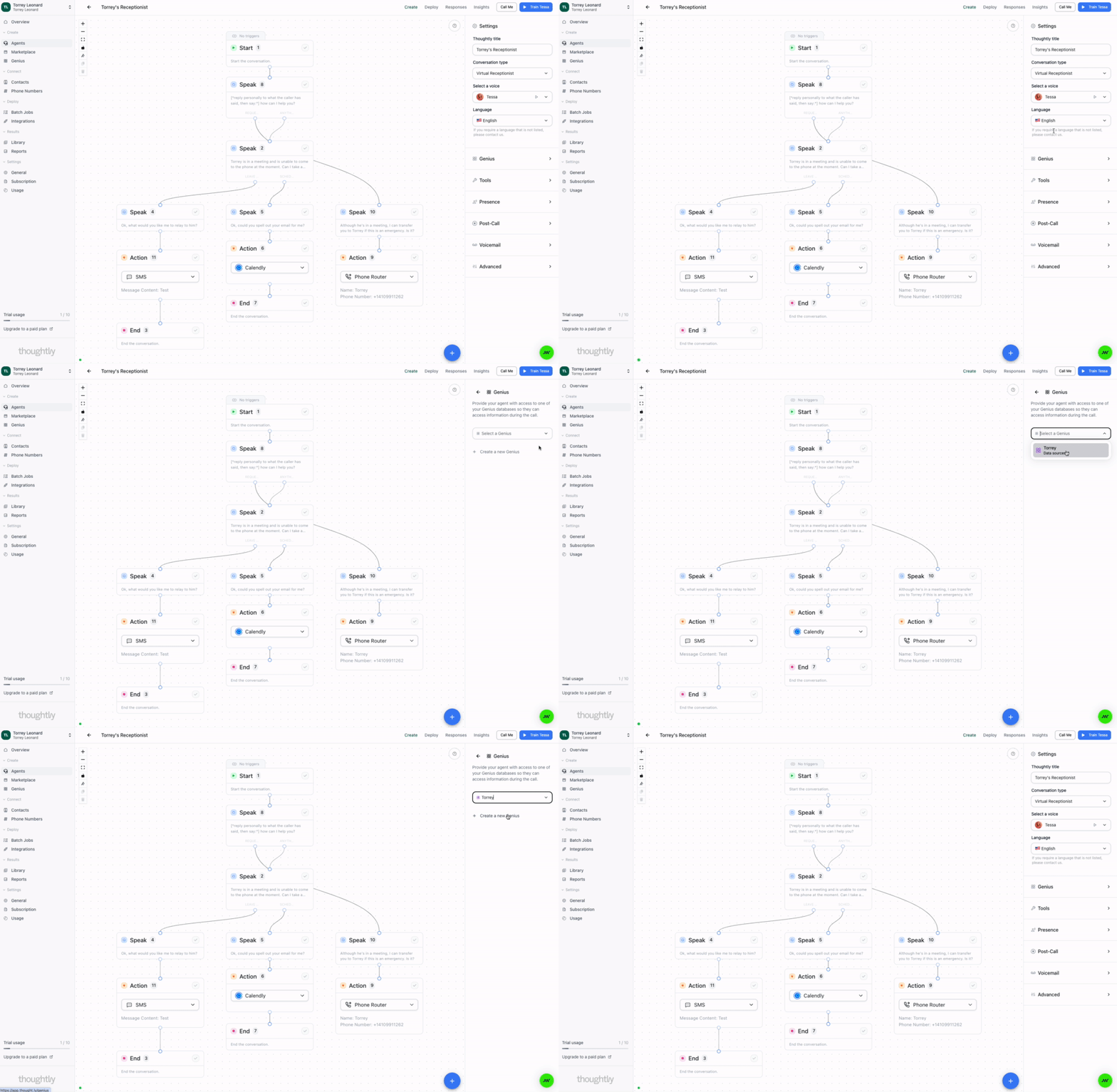
Once you've created and populated your Genius knowledge base, the next step is to connect it to your Voice Agents. This process, called "binding," enables your Voice Agent to access the knowledge base during conversations.
## Connecting a Voice Agent
To connect a Voice Agent to a Genius, head to the [Agent Builder](/agents/overview) and click on the **Genius** tab. From here, you can select the Genius you want to connect to your Voice Agent.
 ## Multiple Agents, One Genius
You can connect the same Genius knowledge base to multiple Voice Agents. This is useful when:
* You have different agents for inbound and outbound calls
* You want specialized agents that share a common knowledge base
* You're testing different agent configurations with the same information
### Example Use Cases
**Customer Service Team**
```
- General Support Agent → Connected to "Company Knowledge Base"
- Technical Support Agent → Connected to "Company Knowledge Base"
- Billing Support Agent → Connected to "Company Knowledge Base"
```
All three agents share the same foundational knowledge but have different conversation flows and specializations.
**Sales Team**
```
- Lead Qualification Agent → Connected to "Product Catalog"
- Demo Scheduler Agent → Connected to "Product Catalog"
- Follow-up Agent → Connected to "Product Catalog"
```
## Switching Genius Connections
You can change which Genius is connected to a Voice Agent at any time:
1. Navigate to the Agent Builder
2. Select the Voice Agent you want to modify
3. Click on the **Genius** tab
4. Choose a different Genius from the dropdown
5. Save your changes
When you switch Genius connections, the Voice Agent will immediately start using the new knowledge base. Make sure the new Genius has all necessary information before switching in a production environment.
## Disconnecting Genius
To disconnect a Genius from a Voice Agent:
1. Go to the Agent Builder
2. Select the Voice Agent
3. Click on the **Genius** tab
4. Select "None" or "No Genius" from the dropdown
5. Save your changes
The Voice Agent will no longer have access to any knowledge base and will rely solely on its prompts and conversation flow.
## Testing Your Connection
After connecting a Genius to a Voice Agent, test it by:
1. Making a test call to the agent
2. Asking questions that should be answered from the Genius
3. Verifying the responses are accurate and relevant
4. Checking that the agent retrieves information correctly
## Troubleshooting
### Agent not using Genius information
**Possible causes:**
* Genius is not properly connected
* The information exists but isn't formatted clearly
* The question doesn't match content in the knowledge base
* Too much information making retrieval difficult
**Solutions:**
* Verify the connection in Agent Builder
* Review and reformat your data sources
* Add more specific Q\&A content
* Reduce irrelevant or redundant information
### Agent providing incorrect information
**Possible causes:**
* Conflicting information across data sources
* Outdated content in the knowledge base
* Ambiguous or unclear content
**Solutions:**
* Review all data sources for contradictions
* Update or remove outdated information
* Clarify content using Q\&A format
## Genius Updates and Agent Behavior
When you update content in a Genius:
* Changes are reflected immediately
* All connected agents will use the updated information
* No need to restart or reconfigure agents
* Test after updates to verify changes work as expected
## Multiple Agents, One Genius
You can connect the same Genius knowledge base to multiple Voice Agents. This is useful when:
* You have different agents for inbound and outbound calls
* You want specialized agents that share a common knowledge base
* You're testing different agent configurations with the same information
### Example Use Cases
**Customer Service Team**
```
- General Support Agent → Connected to "Company Knowledge Base"
- Technical Support Agent → Connected to "Company Knowledge Base"
- Billing Support Agent → Connected to "Company Knowledge Base"
```
All three agents share the same foundational knowledge but have different conversation flows and specializations.
**Sales Team**
```
- Lead Qualification Agent → Connected to "Product Catalog"
- Demo Scheduler Agent → Connected to "Product Catalog"
- Follow-up Agent → Connected to "Product Catalog"
```
## Switching Genius Connections
You can change which Genius is connected to a Voice Agent at any time:
1. Navigate to the Agent Builder
2. Select the Voice Agent you want to modify
3. Click on the **Genius** tab
4. Choose a different Genius from the dropdown
5. Save your changes
When you switch Genius connections, the Voice Agent will immediately start using the new knowledge base. Make sure the new Genius has all necessary information before switching in a production environment.
## Disconnecting Genius
To disconnect a Genius from a Voice Agent:
1. Go to the Agent Builder
2. Select the Voice Agent
3. Click on the **Genius** tab
4. Select "None" or "No Genius" from the dropdown
5. Save your changes
The Voice Agent will no longer have access to any knowledge base and will rely solely on its prompts and conversation flow.
## Testing Your Connection
After connecting a Genius to a Voice Agent, test it by:
1. Making a test call to the agent
2. Asking questions that should be answered from the Genius
3. Verifying the responses are accurate and relevant
4. Checking that the agent retrieves information correctly
## Troubleshooting
### Agent not using Genius information
**Possible causes:**
* Genius is not properly connected
* The information exists but isn't formatted clearly
* The question doesn't match content in the knowledge base
* Too much information making retrieval difficult
**Solutions:**
* Verify the connection in Agent Builder
* Review and reformat your data sources
* Add more specific Q\&A content
* Reduce irrelevant or redundant information
### Agent providing incorrect information
**Possible causes:**
* Conflicting information across data sources
* Outdated content in the knowledge base
* Ambiguous or unclear content
**Solutions:**
* Review all data sources for contradictions
* Update or remove outdated information
* Clarify content using Q\&A format
## Genius Updates and Agent Behavior
When you update content in a Genius:
* Changes are reflected immediately
* All connected agents will use the updated information
* No need to restart or reconfigure agents
* Test after updates to verify changes work as expected