> ## Documentation Index
> Fetch the complete documentation index at: https://docs.thoughtly.com/llms.txt
> Use this file to discover all available pages before exploring further.
# Get started with Thoughtly automations
> Build automation workflows that trigger Thoughtly voice agents on a schedule, from CRM events or webhooks, and run post-call actions like tagging and sync.
export const NextSection = ({title, icon, href, description}) =>
{description}
;
**Prerequisites**: Complete [Agent Builder Overview](/agents/overview) first.
Automations are the [workflows](/resources/glossary#workflow) that trigger your Voice Agents, run actions prior to connecting a call, or perform actions after a call. By setting up Automations, you can connect your Voice Agents to any CRM, calendar, or other software within minutes.
Unlike the [generative](/resources/whitepapers/conversational-ai) and "human-like" nature of Voice Agents, Automations are fully deterministic, meaning you can rely on them to run exactly as you've set them up.
## What can Automations do?
The power of a Thoughtly Voice Agent comes from its ability to connect to other software and systems. Automations are the key to unlocking this power, allowing you to do a number of advanced tasks.
Here are just a few examples:
Automations can turn your CRM into a powerful "brain" that powers your Voice Agents, allowing them to access and update customer records in real-time.
When a new lead is added to your CRM, you can trigger an Automation to trigger your Voice Agents to make a call, who can then reach out to the lead and update the CRM with the outcome.
Using the [Inbound Call](/automations/triggers#thoughtly-on-inbound-call) trigger, when a call comes in, you can trigger an Automation to retrieve data from your CRM, Google Sheets, or other software. Once the data is retrieved, you can connect the call to your Voice Agents with all the information they need to have a productive conversation.
This allows your Voice Agents to have all the information they need to have a productive conversation with the caller, whether it's real-time stock prices, customer purchase history, or current inventory levels.
Using the [Recurring Schedule](/automations/triggers#time-recurring-schedule) trigger, you can set up an Automation to run at a specific time every day, week, or month. There are endless possibilities for what you can do with this, from sending out appointment reminders, making calls to new leads during business hours, or just checking in with customers on a regular basis.
When used in conjunction with other Actions, you can create complex workflows that run automatically, without any manual intervention.
Automations can be triggered by a wide variety of events, including form submissions. Using available [Integration Triggers](/automations/triggers#integration-triggers) that connect to form software like Typeform, Google Forms, Meta Ads, GoHighLevel Forms, or JotForm, you can trigger an Automation to call a lead immediately after they submit a form.
This allows you to reach out to leads while they're still engaged, increasing the likelihood of a successful conversation.
Automations have two main components:
1. **[Triggers](/automations/triggers)**: Events that start the automation (e.g., new CRM lead, call completed)
2. **[Actions](/automations/actions)**: Tasks the automation performs (e.g., make a call, send SMS, update CRM)
When you create an Automation, you'll first select a Trigger, then add one or more Actions. Variables are automatically created by steps and can be passed between actions using the field picker—see [data mapping](/automations/actions#step-anatomy-and-data-mapping) for details.
## Creating Your First Automation
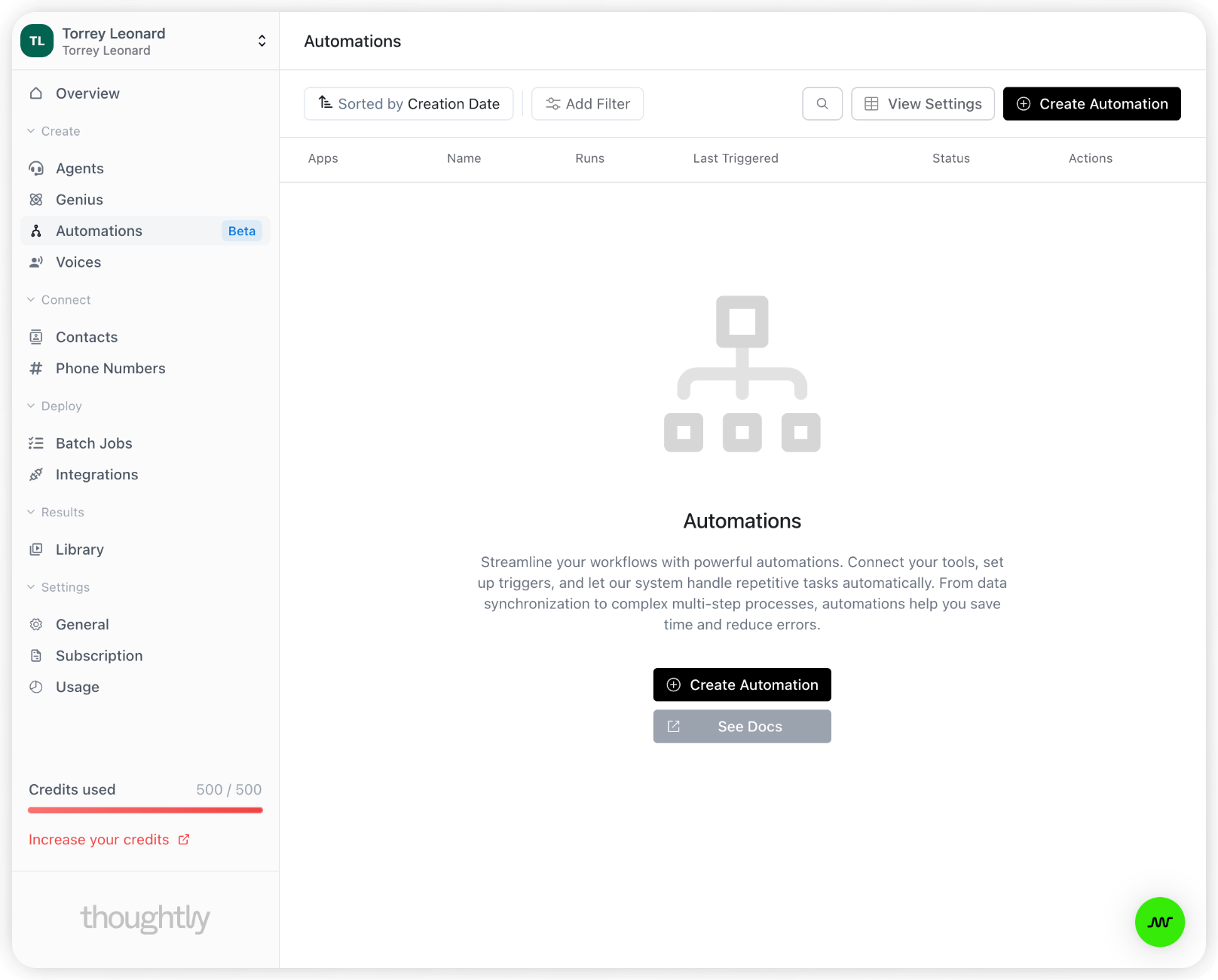
To create a new Automation, open **Tools → Automations** in the primary navigation (or go directly to [Automations](https://app.thoughtly.com/automation)). From there, you can create a new Automation, or view and edit existing Automations.
When a new Automation is created, you'll first be prompted to select a [Trigger](/automations/triggers). This is what will start the Automation. For example, you could select the "Inbound Call" trigger to run an Automation every time a call is received, or the "New Lead" trigger to run an Automation every time a new lead is added to your CRM.
After selecting a Trigger, you'll be prompted to add one or more [Actions](/automations/actions). These are the tasks that the Automation will perform. For example, you could add an action to make a call, send an SMS, or update a record in your CRM.
When configuring integration actions, if you have multiple accounts connected for the same integration, you can select which account to use in the Account tab of the action configuration.
For detailed information on configuring steps, using variables, and data mapping, see the [Actions documentation](/automations/actions).
## Activating Your Automation
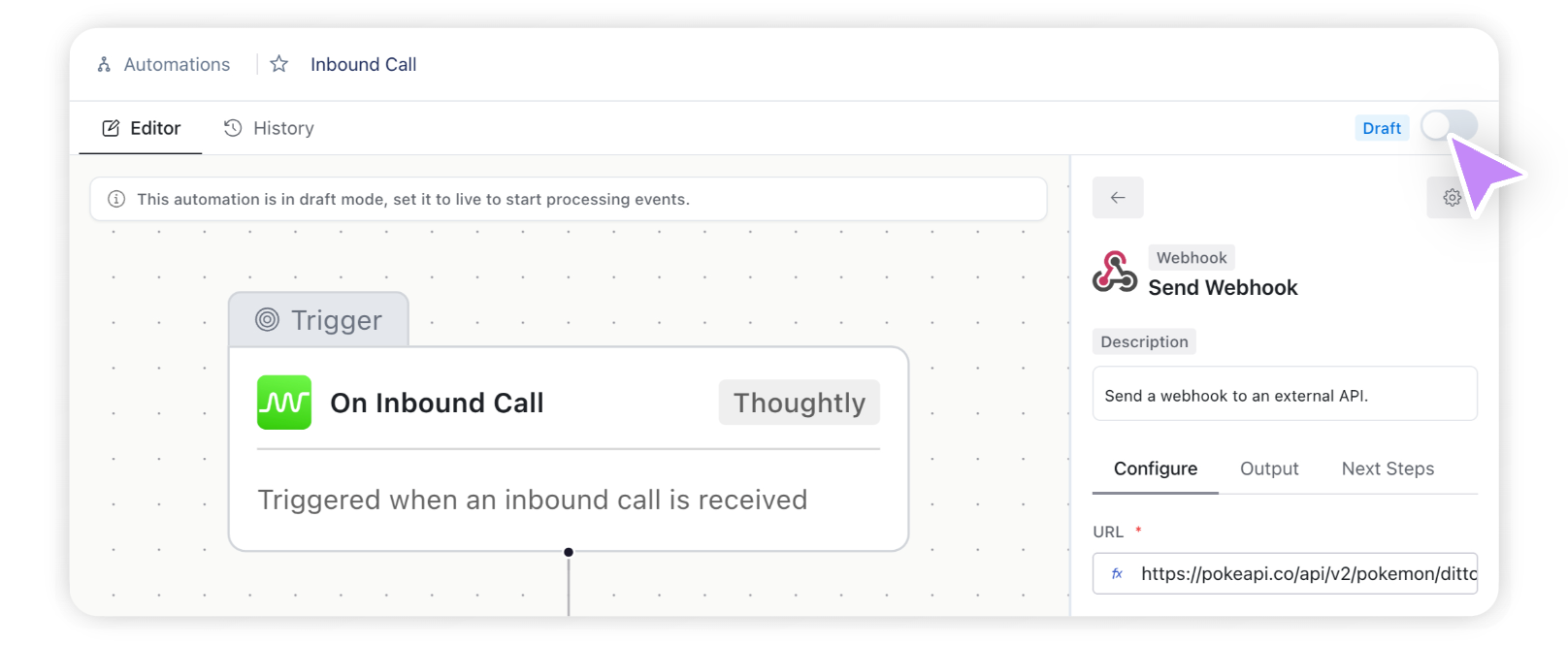
By default, Automations are created in a "draft" state, meaning they won't run until you activate them. To activate an Automation, simply click the "Activate" button in the top right corner of the Automation editor.
Once the Automation is activated, it will run every time the Trigger event occurs. Thoughtly will continuously monitor for the Trigger event, then run the subsequent Actions when the event occurs.
**Common Mistake**: Forgetting to activate an automation after testing. Draft automations never execute, even when trigger events occur. Always click "Activate" when ready for production.
## Troubleshooting
If your automation isn't working as expected:
* Verify automation is set to "Active" (not Draft)
* Check trigger event configuration in [Triggers documentation](/automations/triggers)
* Review data mapping and field paths in [Actions documentation](/automations/actions)
* Test steps individually using Draft mode
## See also
* [Triggers](/automations/triggers) - when and why automations run
* [Actions/Steps](/automations/actions) - what automations can do, variables, and data mapping
* [Attributes vs Metadata](/automations/attributes-vs-metadata) - data persistence patterns
* [Agent Actions](/agents/actions) - mid-call actions vs automation steps
* [Glossary: Workflow](/resources/glossary#workflow) - understanding automation concepts
To learn more about the different Triggers available in Thoughtly, continue to the [Triggers](/automations/triggers) section.
 When a new Automation is created, you'll first be prompted to select a [Trigger](/automations/triggers). This is what will start the Automation. For example, you could select the "Inbound Call" trigger to run an Automation every time a call is received, or the "New Lead" trigger to run an Automation every time a new lead is added to your CRM.
After selecting a Trigger, you'll be prompted to add one or more [Actions](/automations/actions). These are the tasks that the Automation will perform. For example, you could add an action to make a call, send an SMS, or update a record in your CRM.
When configuring integration actions, if you have multiple accounts connected for the same integration, you can select which account to use in the Account tab of the action configuration.
For detailed information on configuring steps, using variables, and data mapping, see the [Actions documentation](/automations/actions).
## Activating Your Automation
By default, Automations are created in a "draft" state, meaning they won't run until you activate them. To activate an Automation, simply click the "Activate" button in the top right corner of the Automation editor.
Once the Automation is activated, it will run every time the Trigger event occurs. Thoughtly will continuously monitor for the Trigger event, then run the subsequent Actions when the event occurs.
When a new Automation is created, you'll first be prompted to select a [Trigger](/automations/triggers). This is what will start the Automation. For example, you could select the "Inbound Call" trigger to run an Automation every time a call is received, or the "New Lead" trigger to run an Automation every time a new lead is added to your CRM.
After selecting a Trigger, you'll be prompted to add one or more [Actions](/automations/actions). These are the tasks that the Automation will perform. For example, you could add an action to make a call, send an SMS, or update a record in your CRM.
When configuring integration actions, if you have multiple accounts connected for the same integration, you can select which account to use in the Account tab of the action configuration.
For detailed information on configuring steps, using variables, and data mapping, see the [Actions documentation](/automations/actions).
## Activating Your Automation
By default, Automations are created in a "draft" state, meaning they won't run until you activate them. To activate an Automation, simply click the "Activate" button in the top right corner of the Automation editor.
Once the Automation is activated, it will run every time the Trigger event occurs. Thoughtly will continuously monitor for the Trigger event, then run the subsequent Actions when the event occurs.