Connect the account (if required) and configure step-specific options.
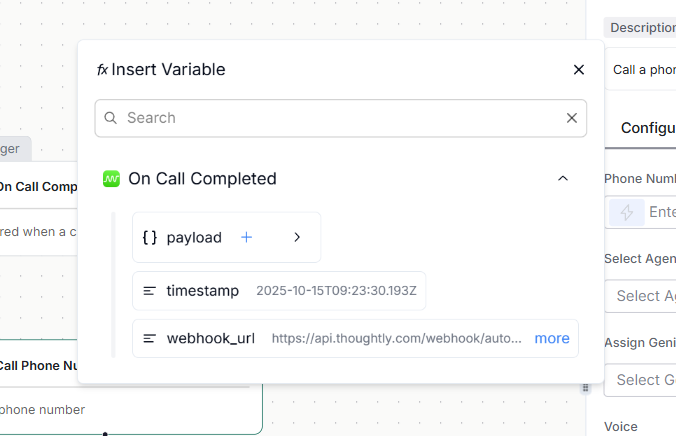 * Click the lightning icon to open the data tree.
* Pick the **Trigger** or any previous **Step** as the source, then click fields to insert them.
* Click the **+** next to a branch to insert an entire sub-object (for example, the full contact).
**Examples**
* Map phone: `{{ trigger.payload.contact.phone }}`
* Map contact ID from an upsert step: `{{ steps.create_or_update_contact.contact_id }}`
* Map booking slot: `{{ steps.calendly_get_available_times.slots[0].start }}`
**Draft vs Live**
* **Draft:** run safely with test payloads; **Output -> Refresh** updates schemas.
* **Live:** runs on real events. Only switch to Live after your test pass.
## 2) Thoughtly steps (core)
These power calls, contacts, and internal data flow. They are the backbone of most automations.
### A) Call Phone Number
Call any phone number with a selected ***Agent***.
* **Inputs**
* **Agent** - choose which agent places the call.
* **Phone number** - map from Trigger/Step (for example, `{{ trigger.payload.contact.phone }}`).
* **Genius (optional)** - attach a specific knowledge base for this call. You can now select a single Genius source, which prevents context hallucinations and helps manage RAG database sizes.
* **Language / Voice (optional)** - override the agent defaults per call.
* **Metadata (optional)** - JSON key-values injected into the agent for this call only (see [Attributes vs Metadata](/automations/attributes-vs-metadata)).\
Example: `{"campaign":"q4","lead_source":"typeform","priority":2}`
* **Output** - `call_id`, status, timestamps, duration, provider metadata.
* **Warnings**
* **Refreshing Output places a real call** to the mapped number. Test with internal numbers.
* **Outbound calling restrictions**: If you select an agent whose connected phone number has outbound calling disabled, a warning will appear. Enable "Allow Outbound Calls" in the phone number settings to resolve this.
* **Typical uses** - ad-hoc callbacks, small pilot campaigns.
### B) Call Contact
Call a Thoughtly **Contact** by ID so you can track history and write **Attributes**.
* **Why this vs Call Phone Number?** Lets you persist traits as Attributes and reuse them across future calls.
* **Prerequisite** - obtain a `contact_id` via **Create or Update Contact** or **Get Contact by Phone Number**.
* **Inputs** - `contact_id`, optional Genius (can select a single source to prevent context hallucinations and manage RAG database sizes), Language/Voice, Metadata.
* **Output** - same call telemetry plus contact linkage.
* **Warnings**: If you select an agent whose connected phone number has outbound calling disabled, a warning will appear. Enable "Allow Outbound Calls" in the phone number settings to resolve this.
* **Create or Update Contact** - upsert a contact; returns `contact_id`.
* **Get Contact by Phone Number** - fetch to avoid duplicates or enrich calls.
* **Add Attributes to Contact** - set persistent key-values (plan, region, lifetime\_value).
* **Add Tags to Contact** - apply lightweight labels (vip, pilot).
* **Add Disposition** - write a post-call label or result for analytics.
* **Get All Contacts** - list contacts for batch processing or export.
### D) Messaging and inbound
* **Send SMS** - confirmations, links, follow-ups (map `to`, `body`).
* **Connect Inbound Call** - complete the inbound connection after [On Inbound Call](/automations/triggers#thoughtly-on-inbound-call) pre-checks.
### E) Genius source tools
Maintain the knowledge base your agents use:
* **Add Source to Genius** - add new content to a Genius source.
* **Edit Genius Source** - update a source's content or metadata.
* **Delete Genius Source** - remove a source from the Genius knowledge base.
* **Get Genius Source Content** - fetch the full content for a source.
## Recent action improvements
### Dynamic values in number and date fields
Many numeric and date-like fields now support dynamic values from previous triggers or steps. When a field exposes the data picker or custom-value mode, you can insert variables such as:
```text theme={null}
{{ steps.calculate_delay.delay_seconds }}
{{ trigger.payload.requested_date }}
```
Use dynamic values when call timing, delay duration, appointment date, quantity, or scoring depends on prior workflow data.
### Automatic retry for webhook rate limits
When a webhook action receives a `429` response, Thoughtly automatically respects the `Retry-After` header up to the supported retry window and retries once. If the retry succeeds, the automation continues. If it fails again, the run is marked failed.
For non-rate-limit errors such as `400` or `500`, design the receiving system and workflow to handle failure explicitly.
### Send Email
Use **Send Email** to send email from a connected email channel as part of an automation. Typical uses include confirmations, summaries, follow-ups, or internal notifications.
Before using Send Email, configure your email domain and connected addresses in [Email domains](/platform/settings/email-domains).
### Send SMS
Use **Send SMS** for confirmations, reminders, and short follow-up messages. If you want the contact to continue a two-way conversation with an agent, use an agent-led SMS conversation pattern rather than treating SMS as a one-off notification.
### Code
Use **Code** for advanced transformations and calculations. Code runs in a restricted sandbox and is best for last-mile customization such as normalizing phone numbers, scoring leads, or reshaping webhook payloads.
See [Code](/integrations/developer/code).
## 3) AI and logic steps
### A) AI
* Click the lightning icon to open the data tree.
* Pick the **Trigger** or any previous **Step** as the source, then click fields to insert them.
* Click the **+** next to a branch to insert an entire sub-object (for example, the full contact).
**Examples**
* Map phone: `{{ trigger.payload.contact.phone }}`
* Map contact ID from an upsert step: `{{ steps.create_or_update_contact.contact_id }}`
* Map booking slot: `{{ steps.calendly_get_available_times.slots[0].start }}`
**Draft vs Live**
* **Draft:** run safely with test payloads; **Output -> Refresh** updates schemas.
* **Live:** runs on real events. Only switch to Live after your test pass.
## 2) Thoughtly steps (core)
These power calls, contacts, and internal data flow. They are the backbone of most automations.
### A) Call Phone Number
Call any phone number with a selected ***Agent***.
* **Inputs**
* **Agent** - choose which agent places the call.
* **Phone number** - map from Trigger/Step (for example, `{{ trigger.payload.contact.phone }}`).
* **Genius (optional)** - attach a specific knowledge base for this call. You can now select a single Genius source, which prevents context hallucinations and helps manage RAG database sizes.
* **Language / Voice (optional)** - override the agent defaults per call.
* **Metadata (optional)** - JSON key-values injected into the agent for this call only (see [Attributes vs Metadata](/automations/attributes-vs-metadata)).\
Example: `{"campaign":"q4","lead_source":"typeform","priority":2}`
* **Output** - `call_id`, status, timestamps, duration, provider metadata.
* **Warnings**
* **Refreshing Output places a real call** to the mapped number. Test with internal numbers.
* **Outbound calling restrictions**: If you select an agent whose connected phone number has outbound calling disabled, a warning will appear. Enable "Allow Outbound Calls" in the phone number settings to resolve this.
* **Typical uses** - ad-hoc callbacks, small pilot campaigns.
### B) Call Contact
Call a Thoughtly **Contact** by ID so you can track history and write **Attributes**.
* **Why this vs Call Phone Number?** Lets you persist traits as Attributes and reuse them across future calls.
* **Prerequisite** - obtain a `contact_id` via **Create or Update Contact** or **Get Contact by Phone Number**.
* **Inputs** - `contact_id`, optional Genius (can select a single source to prevent context hallucinations and manage RAG database sizes), Language/Voice, Metadata.
* **Output** - same call telemetry plus contact linkage.
* **Warnings**: If you select an agent whose connected phone number has outbound calling disabled, a warning will appear. Enable "Allow Outbound Calls" in the phone number settings to resolve this.
* **Create or Update Contact** - upsert a contact; returns `contact_id`.
* **Get Contact by Phone Number** - fetch to avoid duplicates or enrich calls.
* **Add Attributes to Contact** - set persistent key-values (plan, region, lifetime\_value).
* **Add Tags to Contact** - apply lightweight labels (vip, pilot).
* **Add Disposition** - write a post-call label or result for analytics.
* **Get All Contacts** - list contacts for batch processing or export.
### D) Messaging and inbound
* **Send SMS** - confirmations, links, follow-ups (map `to`, `body`).
* **Connect Inbound Call** - complete the inbound connection after [On Inbound Call](/automations/triggers#thoughtly-on-inbound-call) pre-checks.
### E) Genius source tools
Maintain the knowledge base your agents use:
* **Add Source to Genius** - add new content to a Genius source.
* **Edit Genius Source** - update a source's content or metadata.
* **Delete Genius Source** - remove a source from the Genius knowledge base.
* **Get Genius Source Content** - fetch the full content for a source.
## Recent action improvements
### Dynamic values in number and date fields
Many numeric and date-like fields now support dynamic values from previous triggers or steps. When a field exposes the data picker or custom-value mode, you can insert variables such as:
```text theme={null}
{{ steps.calculate_delay.delay_seconds }}
{{ trigger.payload.requested_date }}
```
Use dynamic values when call timing, delay duration, appointment date, quantity, or scoring depends on prior workflow data.
### Automatic retry for webhook rate limits
When a webhook action receives a `429` response, Thoughtly automatically respects the `Retry-After` header up to the supported retry window and retries once. If the retry succeeds, the automation continues. If it fails again, the run is marked failed.
For non-rate-limit errors such as `400` or `500`, design the receiving system and workflow to handle failure explicitly.
### Send Email
Use **Send Email** to send email from a connected email channel as part of an automation. Typical uses include confirmations, summaries, follow-ups, or internal notifications.
Before using Send Email, configure your email domain and connected addresses in [Email domains](/platform/settings/email-domains).
### Send SMS
Use **Send SMS** for confirmations, reminders, and short follow-up messages. If you want the contact to continue a two-way conversation with an agent, use an agent-led SMS conversation pattern rather than treating SMS as a one-off notification.
### Code
Use **Code** for advanced transformations and calculations. Code runs in a restricted sandbox and is best for last-mile customization such as normalizing phone numbers, scoring leads, or reshaping webhook payloads.
See [Code](/integrations/developer/code).
## 3) AI and logic steps
### A) AI
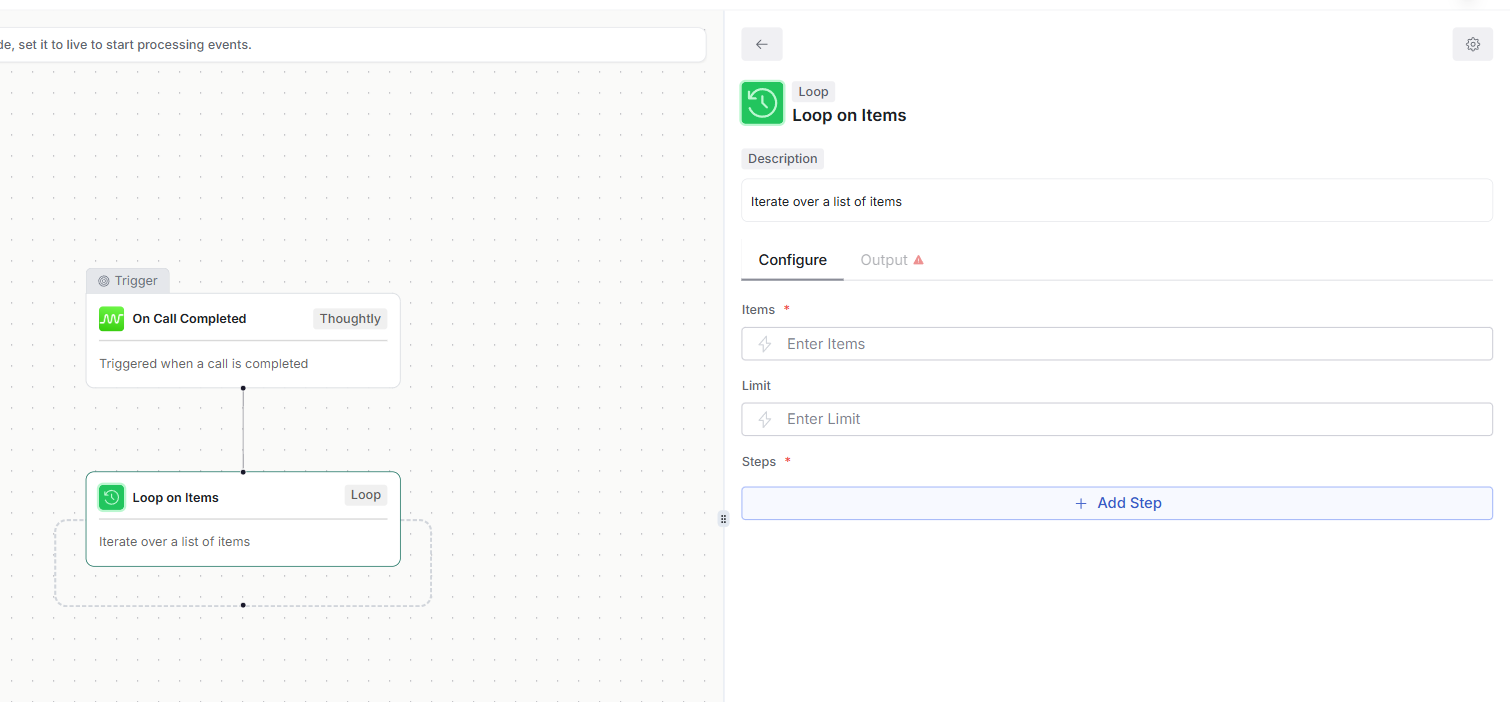 Iterate over a list (for example, CRM rows) and execute nested steps per item.
* **Loop on Items** - iterate over each item in an array and run nested steps.
* **Inputs:** array path (for example, `{{ steps.salesforce_query.records }}`), optional batch size, max items.
* **Loop variables:** `{{ loop.index }}` (zero-based), `{{ loop.item }}` (current object).
* **Example:** loop contacts -> **Call Contact** each -> **Add Disposition** on result.
* **Credit usage:** Each iteration of a loop step consumes 1 credit (for AppSumo plans) or counts as 1 automation step, the same as regular automation nodes.
#### Conditional logic inside loop nodes
You can now add **Conditions** (Filter, If/Else, Switch) directly inside a loop node. This lets you branch or skip steps on a per-item basis without needing a separate outer condition step.
**How it works**
1. Inside a **Loop on Items** node, add a **Conditions** step as you would anywhere else in the automation.
2. Reference `{{ loop.item }}` fields in your condition expressions to evaluate each item individually.
3. Each branch inside the loop runs only for items that match its condition; items that do not match follow the else/default branch or are skipped.
**Example: call only qualified leads**
```text theme={null}
Loop on Items → {{ steps.salesforce_query.records }}
└─ If / Else
├─ IF {{ loop.item.lead_score }} >= 80
│ └─ Call Contact
│ └─ Add Disposition
└─ ELSE (skip — no steps)
```
**Tips**
* Use **Filter** inside the loop to drop items early and avoid unnecessary downstream steps.
* Use **Switch** when items fall into more than two categories (for example, routing by `loop.item.region`).
* Nested conditions count toward the automation step total the same as any other condition node.
Iterate over a list (for example, CRM rows) and execute nested steps per item.
* **Loop on Items** - iterate over each item in an array and run nested steps.
* **Inputs:** array path (for example, `{{ steps.salesforce_query.records }}`), optional batch size, max items.
* **Loop variables:** `{{ loop.index }}` (zero-based), `{{ loop.item }}` (current object).
* **Example:** loop contacts -> **Call Contact** each -> **Add Disposition** on result.
* **Credit usage:** Each iteration of a loop step consumes 1 credit (for AppSumo plans) or counts as 1 automation step, the same as regular automation nodes.
#### Conditional logic inside loop nodes
You can now add **Conditions** (Filter, If/Else, Switch) directly inside a loop node. This lets you branch or skip steps on a per-item basis without needing a separate outer condition step.
**How it works**
1. Inside a **Loop on Items** node, add a **Conditions** step as you would anywhere else in the automation.
2. Reference `{{ loop.item }}` fields in your condition expressions to evaluate each item individually.
3. Each branch inside the loop runs only for items that match its condition; items that do not match follow the else/default branch or are skipped.
**Example: call only qualified leads**
```text theme={null}
Loop on Items → {{ steps.salesforce_query.records }}
└─ If / Else
├─ IF {{ loop.item.lead_score }} >= 80
│ └─ Call Contact
│ └─ Add Disposition
└─ ELSE (skip — no steps)
```
**Tips**
* Use **Filter** inside the loop to drop items early and avoid unnecessary downstream steps.
* Use **Switch** when items fall into more than two categories (for example, routing by `loop.item.region`).
* Nested conditions count toward the automation step total the same as any other condition node.