> ## Documentation Index
> Fetch the complete documentation index at: https://docs.thoughtly.com/llms.txt
> Use this file to discover all available pages before exploring further.
# Agent voices
> Browse the Thoughtly voice library, preview samples, and assign a voice to your agent directly inside the Agent Builder across multiple languages and styles.
export const NextSection = ({title, icon, href, description}) =>
{description}
;
export const ArcadeEmbed = ({code}) =>
;
Voice selection in Thoughtly happens **inside the Agent Builder**. When you open an agent and click the **Voice** field in the right-hand sidebar, the Voice Selector panel opens with two tabs: **Saved** (shown by default) and **Explore**. This gives you everything you need to browse, preview, save, and assign voices without leaving the builder.
## Voice Platforms
Voices are sourced from two industry-leading providers:
Ultra-low-latency voice synthesis with expressive, professional voices. Features real-time generation, speed control, and advanced audio capabilities.
Natural-sounding voices with a wide selection of accents, styles, and personalities. A trusted choice for conversational AI.
### Saved Tab
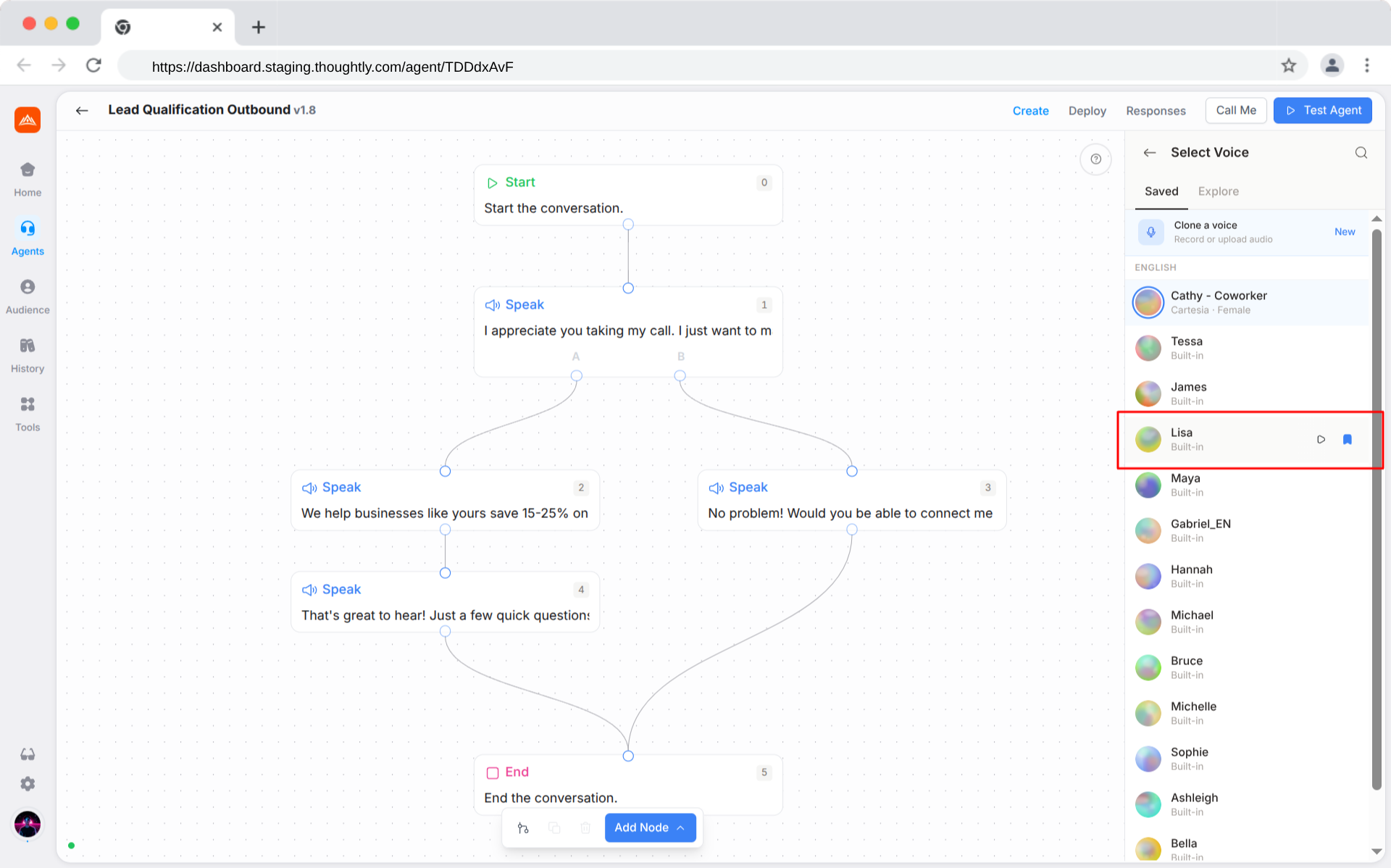
Your personal voice library. Voices you have previously saved appear here, **grouped by language**. The active voice's language group is pinned to the top, and the active voice itself is highlighted within it.
Most workspaces connect their own voice provider account to access voices. See [Bring Your Own Key (BYOK)](/agents/voice-byok) for details on connecting your API key. A small number of enterprise workspaces use Thoughtly's built-in voice set instead and see 13 default English voices labeled **Built-in**.
| Element | What it does |
| --------------------- | ---------------------------------------------------------------------------------------------------- |
| **Voice row** | Shows avatar, name, platform, gender, and cost multiplier |
| **Play / Pause** | Instantly preview the voice audio |
| **Bookmark (filled)** | Remove the voice from your Saved library |
| **Clone a voice** | Opens the [Clone Voice](/agents/voice-cloning) modal (record or upload) |
| **Filter** | Click the search icon in the header to filter saved voices by name, language, accent, or description |
### Explore Tab
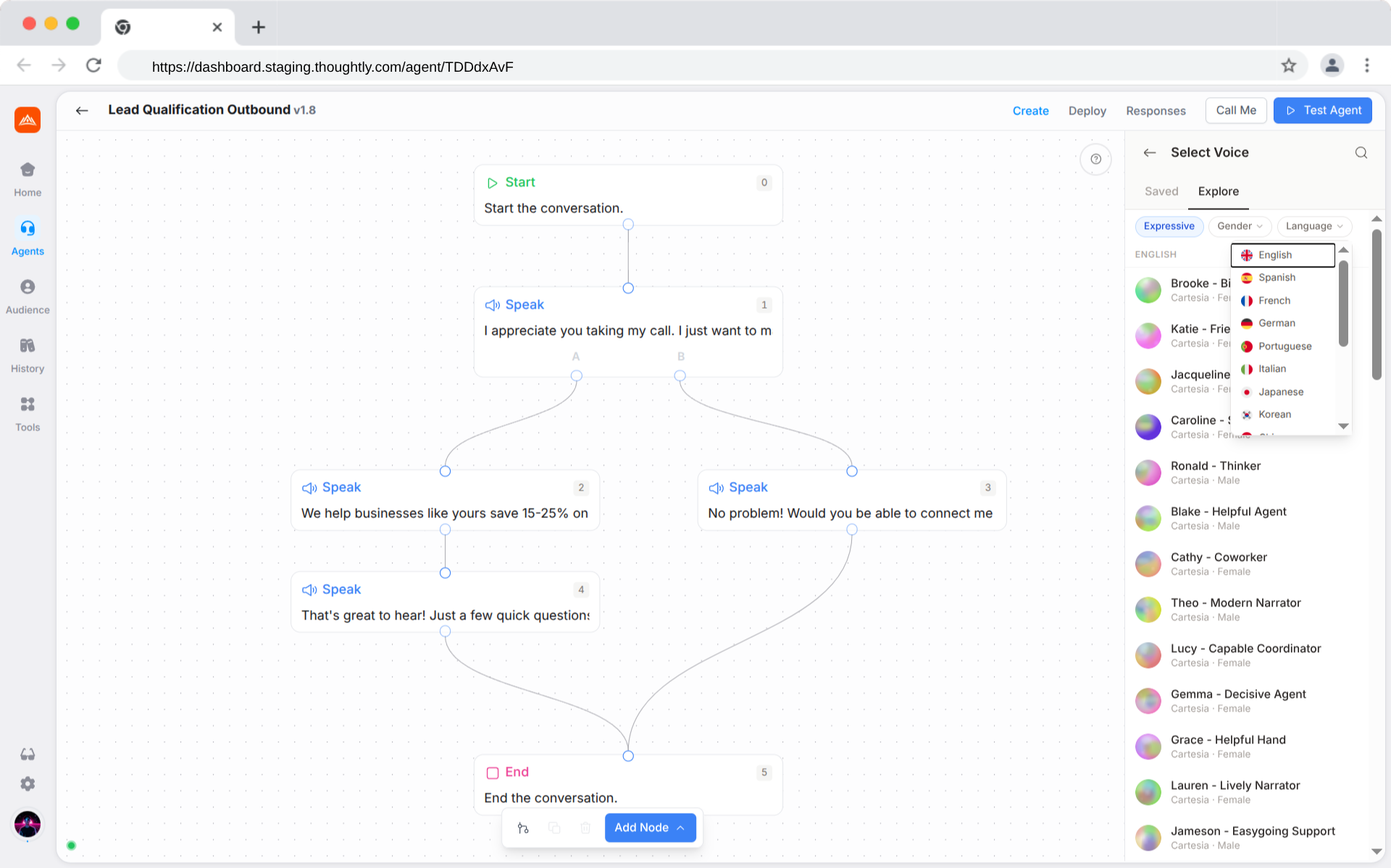
The **Explore** tab inside the Agent Builder's Voice Selector gives you access to thousands of professional voices from **Cartesia** and **ElevenLabs**. The **Expressive** toggle is enabled by default, prioritizing low-latency, expressive voices. Toggle it off to browse the full catalog across both platforms. You can search, filter, preview, and save, all without leaving the agent you're editing.
 #### Filter Chips
| Filter | Behavior |
| -------------- | ----------------------------------------------------------------------------------------------------------------------------------------------------------------------------- |
| **Expressive** | Enabled by default. Prioritizes low-latency, expressive voices optimized for real-time conversations. Toggle off to browse the full catalog across all platforms. |
| **Gender** | Select **Male** or **Female** to narrow results. |
| **Language** | Choose from 15 languages (with flag icons): English, Spanish, French, German, Portuguese, Italian, Japanese, Korean, Chinese, Hindi, Arabic, Polish, Dutch, Russian, Turkish. |
Filters can be combined. For example, enable **Expressive** + **Female** + **Spanish** to find low-latency female voices in Spanish.
#### Text Search
Click the **search icon** (🔍) in the panel header to open a search bar. Type a voice name or keyword and results update automatically as you type.
When no results match, a **Clear filters** link appears. Clicking it resets the Gender filter, Language filter, and search text. The **Expressive** toggle is separate and must be toggled off manually if you want to broaden results further.
#### Previewing Voices
Every voice row shows a **Play** button on hover. Click it to hear a sample. Click again (or click **Pause**) to stop. Only one preview plays at a time. Starting a new preview automatically stops the previous one.
#### Filter Chips
| Filter | Behavior |
| -------------- | ----------------------------------------------------------------------------------------------------------------------------------------------------------------------------- |
| **Expressive** | Enabled by default. Prioritizes low-latency, expressive voices optimized for real-time conversations. Toggle off to browse the full catalog across all platforms. |
| **Gender** | Select **Male** or **Female** to narrow results. |
| **Language** | Choose from 15 languages (with flag icons): English, Spanish, French, German, Portuguese, Italian, Japanese, Korean, Chinese, Hindi, Arabic, Polish, Dutch, Russian, Turkish. |
Filters can be combined. For example, enable **Expressive** + **Female** + **Spanish** to find low-latency female voices in Spanish.
#### Text Search
Click the **search icon** (🔍) in the panel header to open a search bar. Type a voice name or keyword and results update automatically as you type.
When no results match, a **Clear filters** link appears. Clicking it resets the Gender filter, Language filter, and search text. The **Expressive** toggle is separate and must be toggled off manually if you want to broaden results further.
#### Previewing Voices
Every voice row shows a **Play** button on hover. Click it to hear a sample. Click again (or click **Pause**) to stop. Only one preview plays at a time. Starting a new preview automatically stops the previous one.
 #### Saving and Assigning a Voice
There are two ways to use a voice from Explore:
**Click to Save + Assign (Recommended)**
Click anywhere on a voice row. Thoughtly will:
1. **Save** the voice to your workspace library (if not already saved)
2. **Assign** it to the current agent
3. **Close** the Voice Selector and return you to the agent sidebar
This is the fastest path. One click does everything.
**Bookmark for Later**
If you want to save a voice **without** assigning it right now, click the **Bookmark** icon on hover. The voice appears in your **Saved** tab for future use across any agent.
To remove a bookmarked voice, click the **filled Bookmark** icon to unsave it from your library.
Voice availability depends on the vendor and can occasionally change. If a voice you rely on becomes unavailable, [contact our support team](/support/getting-help) and we will help you find a replacement.
#### Pagination
Results load 50 voices at a time. If more are available, a **Load more voices** button appears at the bottom. Click it to fetch the next page. Loading state is shown while fetching.
## Voice library behavior
The voice selector loads voices in pages. If more voices are available, use **Load more voices** to continue browsing. Voices should appear only once even when loading additional pages.
## ElevenLabs and Cartesia availability
Workspace voice availability can depend on your plan and whether Bring Your Own Key is enabled. If your workspace uses ElevenLabs BYOK, connect and test your ElevenLabs key before expecting ElevenLabs voices to appear in the selector.
#### Saving and Assigning a Voice
There are two ways to use a voice from Explore:
**Click to Save + Assign (Recommended)**
Click anywhere on a voice row. Thoughtly will:
1. **Save** the voice to your workspace library (if not already saved)
2. **Assign** it to the current agent
3. **Close** the Voice Selector and return you to the agent sidebar
This is the fastest path. One click does everything.
**Bookmark for Later**
If you want to save a voice **without** assigning it right now, click the **Bookmark** icon on hover. The voice appears in your **Saved** tab for future use across any agent.
To remove a bookmarked voice, click the **filled Bookmark** icon to unsave it from your library.
Voice availability depends on the vendor and can occasionally change. If a voice you rely on becomes unavailable, [contact our support team](/support/getting-help) and we will help you find a replacement.
#### Pagination
Results load 50 voices at a time. If more are available, a **Load more voices** button appears at the bottom. Click it to fetch the next page. Loading state is shown while fetching.
## Voice library behavior
The voice selector loads voices in pages. If more voices are available, use **Load more voices** to continue browsing. Voices should appear only once even when loading additional pages.
## ElevenLabs and Cartesia availability
Workspace voice availability can depend on your plan and whether Bring Your Own Key is enabled. If your workspace uses ElevenLabs BYOK, connect and test your ElevenLabs key before expecting ElevenLabs voices to appear in the selector.