> ## Documentation Index
> Fetch the complete documentation index at: https://docs.thoughtly.com/llms.txt
> Use this file to discover all available pages before exploring further.
# Variables in voice agents
> Capture caller data into variables and reuse it across nodes for branching, action payloads, dynamic prompts, and post-call follow-up in Thoughtly.
export const NextSection = ({title, icon, href, description}) =>
{description}
;
**Prerequisites**: Review [Speak Nodes](/agents/nodes#speak-node) and [Outcomes](/agents/outcomes) first.
Variables let your agent **capture information from the conversation** for use later: within the same call (branching with [Outcomes](/agents/outcomes), deciding [Actions](/agents/actions)) and after the call (CRM updates, notes, automations).
**When they extract:** Immediately after the caller's latest reply and **before** outcome evaluation. That means your outcomes can reference fresh variable values right away.
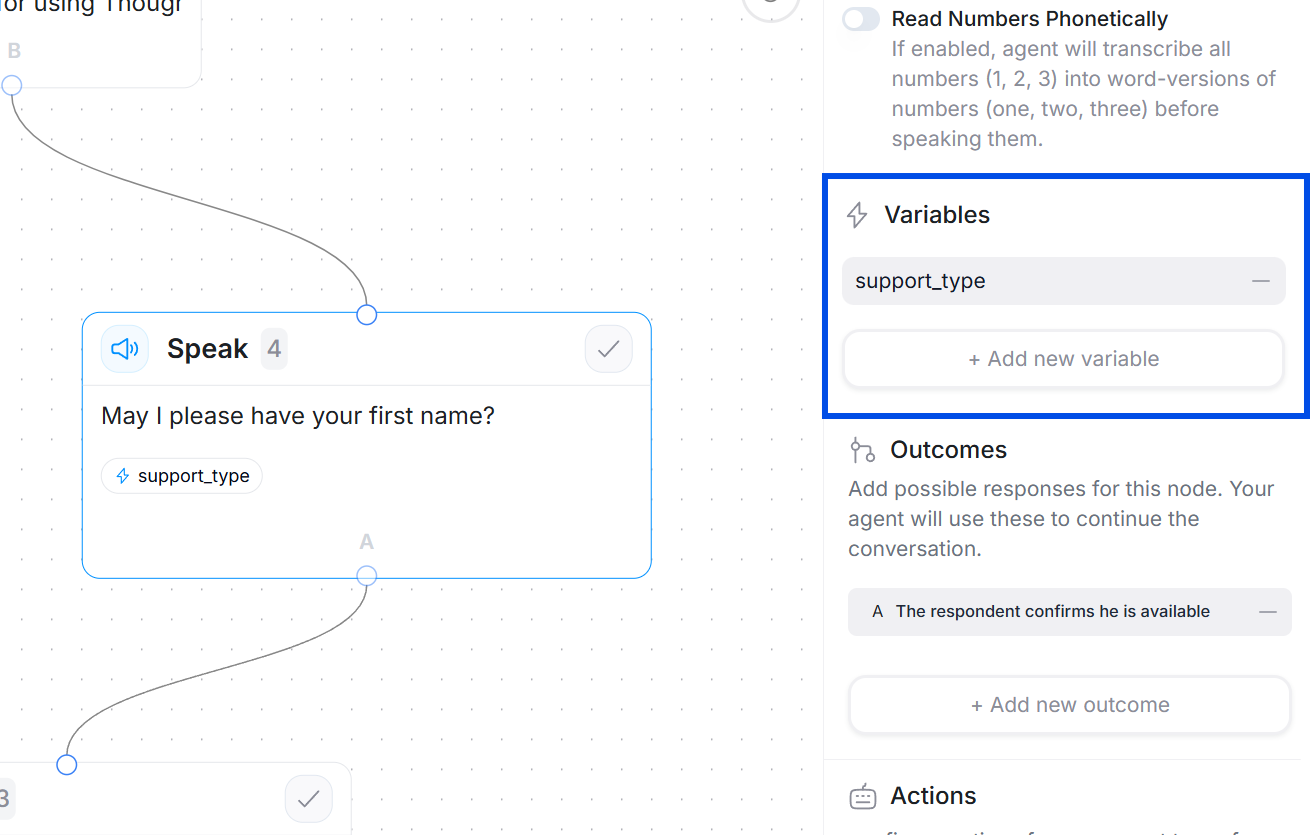
Add variables from the right panel of a [Speak node](/agents/nodes#speak-node). Open the node, scroll to **Variables**, and click **Add variable**.
 ## Visual type indicators
Variables display with type-specific icons throughout the Agent Builder to help you quickly identify their format:
* **Text variables** show a text icon
* **Number variables** show a grid icon
* **Boolean variables** show a customize icon
These icons appear in:
* The variable picker dropdown when inserting variables into messages
* Variable chips within the message editor
* The variables list in speak nodes
* Canvas node previews
* Outcome rules that reference variables
This visual system makes it easier to track variable types at a glance and ensures you're using the correct format in your logic.
## Fields
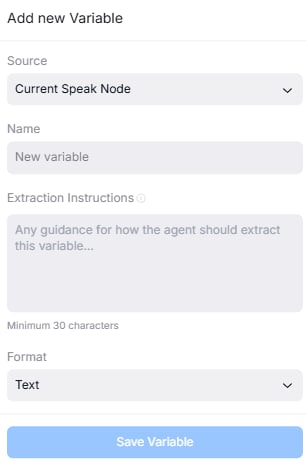
* **Name** - A short, readable identifier you will reference in rules and prompts (for example `budget`, `email`, `callback_time`).
* **Source** - Choose **Current speak node** or **Conversation history**.
* *Current speak node* extracts only from the caller's most recent turn, ignoring earlier context. Great for precise questions such as "What is your email?" when you only want the latest answer.
* *Conversation history* searches the entire conversation for the best value. Useful when the caller may have mentioned it earlier or you want a fallback.
* **Extraction instructions** - This is the heart of the variable. Write exactly what to extract and how to transform it. Be explicit about constraints, examples, and edge cases.
## Visual type indicators
Variables display with type-specific icons throughout the Agent Builder to help you quickly identify their format:
* **Text variables** show a text icon
* **Number variables** show a grid icon
* **Boolean variables** show a customize icon
These icons appear in:
* The variable picker dropdown when inserting variables into messages
* Variable chips within the message editor
* The variables list in speak nodes
* Canvas node previews
* Outcome rules that reference variables
This visual system makes it easier to track variable types at a glance and ensures you're using the correct format in your logic.
## Fields
* **Name** - A short, readable identifier you will reference in rules and prompts (for example `budget`, `email`, `callback_time`).
* **Source** - Choose **Current speak node** or **Conversation history**.
* *Current speak node* extracts only from the caller's most recent turn, ignoring earlier context. Great for precise questions such as "What is your email?" when you only want the latest answer.
* *Conversation history* searches the entire conversation for the best value. Useful when the caller may have mentioned it earlier or you want a fallback.
* **Extraction instructions** - This is the heart of the variable. Write exactly what to extract and how to transform it. Be explicit about constraints, examples, and edge cases.
 **Template you can copy**
```text theme={null}
Goal: Extract the the caller states.
If multiple candidates: choose the most recent, high-confidence value.
If absent or unclear: return an empty value (no placeholder text).
Normalization: .
Do not invent values.
```
* **Format** - Enforces the output type so downstream logic stays predictable. Each type displays with a unique icon throughout the Agent Builder for easy identification.
* **Text** - Text values (names, emails, addresses). Displays with a text icon.
* **Number** - Numeric only (budgets, credit scores). The system requires a valid number. Displays with a grid icon.
* **Boolean** - True/false values (consent, qualification). Displays with a customize icon.
## Authoring examples
Name: `budget`
**Template you can copy**
```text theme={null}
Goal: Extract the the caller states.
If multiple candidates: choose the most recent, high-confidence value.
If absent or unclear: return an empty value (no placeholder text).
Normalization: .
Do not invent values.
```
* **Format** - Enforces the output type so downstream logic stays predictable. Each type displays with a unique icon throughout the Agent Builder for easy identification.
* **Text** - Text values (names, emails, addresses). Displays with a text icon.
* **Number** - Numeric only (budgets, credit scores). The system requires a valid number. Displays with a grid icon.
* **Boolean** - True/false values (consent, qualification). Displays with a customize icon.
## Authoring examples
Name: `budget`
Source: Current speak node
Extraction instructions: Extract the maximum home budget the caller states as a plain number in USD, with no commas or text. If a range is given (for example "200 to 250k"), choose the upper bound. If not provided, leave empty.
Format: Number
Use with: Rule outcome `budget >= 250000` -> High-intent path.
Name: `email`
Source: Conversation history
Extraction instructions: Extract the caller's email. Normalize to lowercase and remove spaces. If multiple addresses are present, choose the most recent. If none, leave empty.
Format: Text
Use with: Rule outcome `email` matches `/.+@.+\\..+/` -> Collect address details.
Name: `callback_ok`
Source: Current speak node
Extraction instructions: Determine whether the caller has explicitly agreed to a call-back. Return `true` for clear consent like "Yes, call me later," otherwise return `false`.
Format: Boolean
Use with: If `callback_ok == true` -> trigger [Actions](/agents/actions) to create a follow-up task.
## Re-extraction and overrides
* Each time the agent visits a node that defines a variable, it retries extraction and overwrites the previous value if it finds a better one.
* You can intentionally redefine variables later to refine accuracy (for example, asking the caller to confirm their email).
* Prefer *Current speak node* for confirmations to avoid pulling older mentions from the conversation history.
## System variables
Thoughtly provides built-in system variables that you can reference in your agent without defining them explicitly:
* **`{{system.interviewResponse.id}}`** - The unique call ID for the current conversation. Use this to reference the specific call in mid-call actions, webhooks, or external systems.
**Example use case:** Pass the call ID to a webhook during the call so your external system can track which conversation triggered the action.
```text theme={null}
Webhook URL: https://api.example.com/call-events?call_id={{system.interviewResponse.id}}
```
## Referencing node responses
You can reference data captured at specific nodes using the node step number. When a node extracts information or receives a response, you can access it later in the conversation using the format `Node #[step]: Answer` or `Node #[step]: [field_name]`.
**Example:** If node step 3 asks for the caller's email and node step 5 performs an API lookup, you can reference the email response as `Node #3: Answer` in your API action configuration or in subsequent speak node prompts.
Node step numbers are automatically assigned sequentially (Start = 0, then 1, 2, 3, etc.) and remain consistent throughout the conversation, making it easy to reference earlier responses even as you modify your agent flow.
## AI-Generated Variables
Many times, you'll want to create a variable that is generated by an AI model. For example, you might want to create a variable that contains the caller's email address, or keywords that were mentioned based on the call [transcript](/resources/glossary#transcript).
## Validation patterns (pair with Outcomes)
Use rule checks to keep data clean:
* **Required:** If `email` is empty -> loop back to re-ask (self-loop pattern; see [Outcomes](/agents/outcomes#loops-special-use-case)).
* **Ranges:** `credit_score` between 300 and 850; `budget >= 250000`.
* **Flags from Actions:** for example `crm_lookup_found == true`.
## Troubleshooting
**Variable extracting incorrect data**
* Make extraction instructions more specific and concrete
* Switch from Conversation history to Current speak node for precision
* Add examples of correct format in extraction instructions
* Test with [Test Agent](/agents/testing) to verify extraction
**Variable always empty**
* Verify caller is actually providing the information
* Check if variable source is set correctly (current vs history)
* Ensure extraction instructions aren't too restrictive
* Review [test call recordings](/agents/testing#call-me-real-call) for what was said
**Wrong format being extracted**
* Confirm Format field matches expected type (Text/Number/Boolean)
* Add explicit format requirements to extraction instructions
* Use validation rules in [Outcomes](/agents/outcomes) to catch errors
**Variables conflicting with actions**
* On nodes with actions, the order is: actions run → variables update from action results → outcomes evaluate (see [Actions](/agents/actions) for execution order)
* Variables do update from action results on the same node, so you can branch on action output without a separate node
* Use a separate node only if you need the caller to speak again before the next action or outcome
**Common Mistake**: Using vague extraction instructions like "Get their contact info." Be specific: "Extract phone number in format +1-555-555-5555 from caller's response. If not provided, leave empty."
## Best practices
* **Order of operations:** Variables extract before outcomes, so branching logic always sees the latest values.
* **Be explicit:** The more concrete your instructions, the higher the accuracy. Avoid vague wording.
* **Handle empty values:** Plan what happens if the variable is missing (default branch, re-ask loop).
* **Name consistently:** Use lowercase snake\_case (for example `credit_score`, `callback_time`) so rules stay readable.
* **PII caution:** Only capture the [personally identifiable information](/resources/glossary#pii) you actually need.
## See also
* [Outcomes](/agents/outcomes) - branch using the variables you extract
* [Speak nodes](/agents/nodes#speak-node) - where variables live and update
* [Actions](/agents/actions) - set or update variables via lookups and APIs
* [Transfer node](/agents/nodes#transfer-node) - escalate when validation fails repeatedly
* [Testing](/agents/testing) - validate variable extraction with Test Agent
* [Glossary: PII](/resources/glossary#pii) - handling sensitive data responsibly
## Channel type variable
When building omnichannel workflows, use the channel type to adjust agent behavior by medium. For example, an agent can write shorter copy for SMS, longer copy for email, and spoken phrasing for voice.
Example use cases:
* Route email conversations to a different branch than voice calls.
* Keep SMS replies under a target length.
* Avoid voice-specific phrases in email or WhatsApp.
* Track outcomes by channel in analytics.
## Variables in more fields
Variables can now be used in more builder fields, including prompts, extraction instructions, number fields, date fields, and selected integration inputs where supported. Use the data picker when available to avoid typos.